 Elegant
File History alternative you can actually verify
Buried in the old Control Panel there is a page with one interesting sentence on it: Files last copied on…, followed by a date. Most people who go looking for a File History alternative got there by reading that sentence, seeing a date from fourteen months ago and feeling their stomach drop. The drive was plugged in. The setting said On. Nothing shouted.
You set the backup up once. When did you last check it?#
The usual answer to that search is a list of six programs that do the same job with more buttons: schedules, compression levels, cloud add-ons, disk images. Not one of them asks the question that actually separates one route from another.
Before any comparison, though, there is an uncomfortable question: when did you last open the backup drive and look at what is inside it? Not the program’s window, the drive itself. Almost nobody does, because no backup ever asks you to.
What File History does well#
It keeps versions, and that matters more than people give it credit for. It is eleven at night, you save over the good spreadsheet, you notice the damage next morning, and what you want is not a copy of the file. You want Tuesday’s file. No mirror can give you that, because a mirror copies what is there now, damage included. File History can, with a right-click and a ribbon of dates to walk backwards through.
It does that on its own, hourly, and it came free with the machine you already own. For the question “which version did I have on Tuesday?”, it is still a decent tool in 2026, and I am not going to pretend otherwise in order to sell you something else. If that is your problem, leave it running.
Where it fails without a word#
The trouble is not what it does. It is that it does it silently, and the only person who could notice a problem is never invited into the room.
It lives somewhere nobody visits. On Windows 11 the File History page stayed in the legacy Control Panel, and the Settings app does not take you there. A window that sits outside everyone’s daily path is a window nobody opens by accident, and “by accident” is how most people find out something is wrong with a computer.
Its default reach is smaller than people assume. It looks after your libraries, the desktop, contacts and favourites. The project folder on D:\, the ten-year-old folder at the root of a second drive: none of that goes in by itself, only if you add that folder to a library first. Plenty of people assume “Windows is backing me up” while the thing they would cry over sits outside its field of view.
The complaint in the forums is always the same one. Support threads are full of people who discovered, months after the fact, that copying had stopped. And the fix that comes up most often in those threads is reassigning the drive letter or re-selecting the drive, because the configuration lost track of the destination when the disk came back as a different letter. It is what happens when an automatic job has nobody to complain to.
And then there is the bigger hole, the one that survives even when everything works: nowhere, on any screen, is there a sentence telling you that what is on the drive today matches what is on your PC. What is missing is not a feature. It is verification.
Two different questions, two different tools#
Worth pausing here, because almost every backup comparison treats the category as one thing and starts listing capabilities. There are two questions, and they barely touch.
The first is “which version of this file did I have on Tuesday?” That is a question about time. It needs history, and it needs automation, because nobody captures by hand a state that only existed for three hours on a Tuesday afternoon. That is File History’s question, and it answers it well.
The second is “is everything of mine somewhere else, entire, today?” That is a question about completeness, and nothing to do with the past. It gets asked before a trip, before a reinstall, before handing the old laptop to somebody. Automation does not help you answer it. It gets in the way, because it takes you out of the room at exactly the moment the answer needs somebody watching.
The alternative lists almost never ask which of the two is yours.
A mirror you check, not one you hope for#
The second model is older and much less glamorous: copy your folders 1:1 onto a drive you own, then prove, file by file, that what arrived matches what left. That is what Elegant Vault does, and it is the only thing it does.
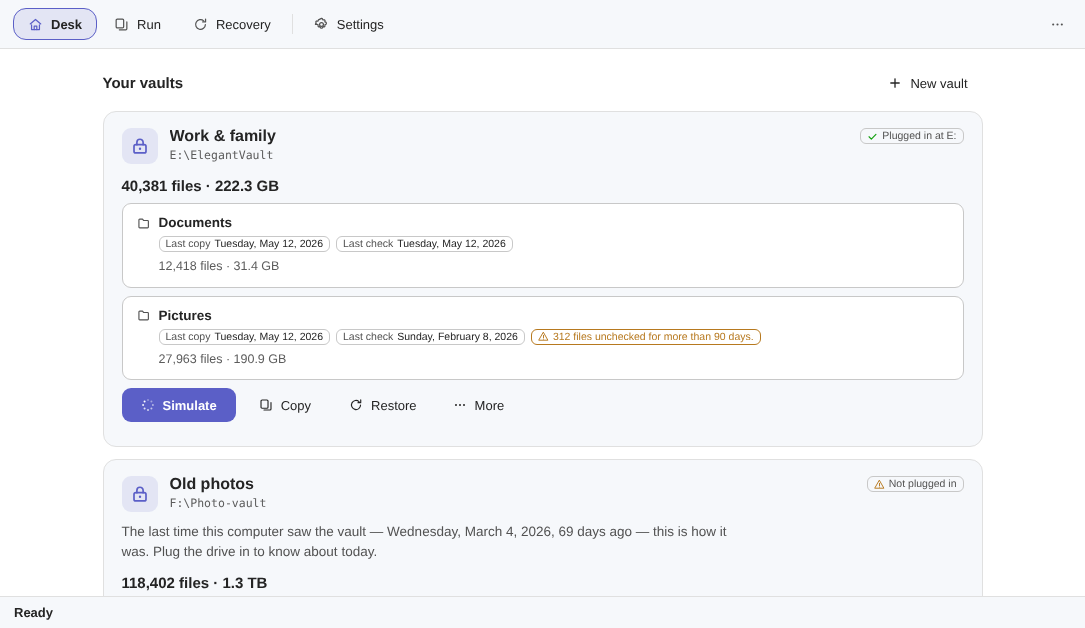
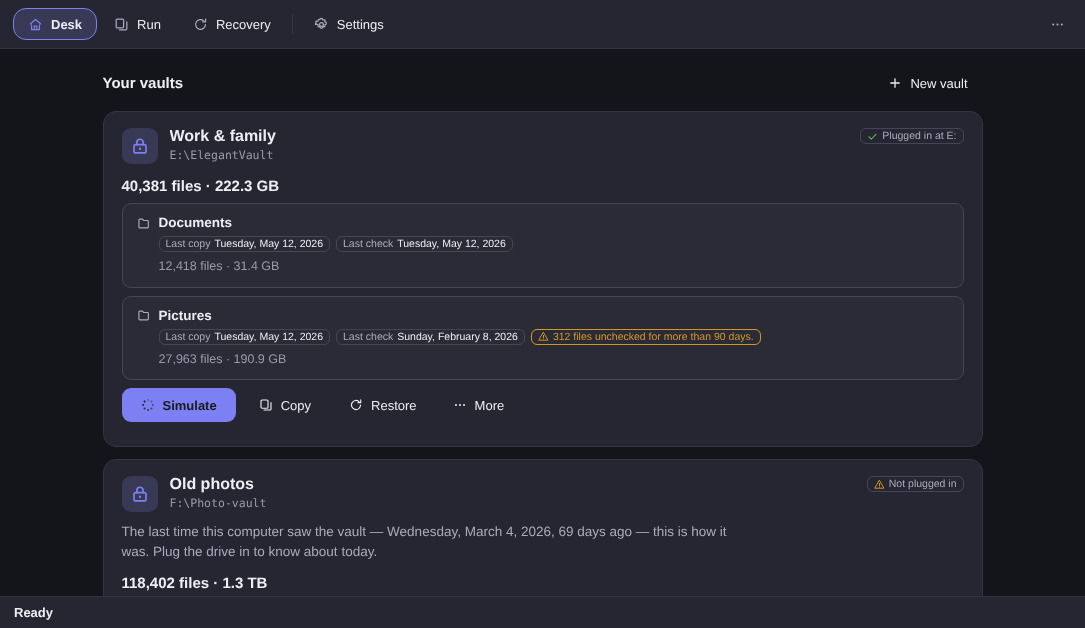
What lands on the drive is not a backup file or a database. It is your folder tree, same names, same paths, inside an ordinary folder on the external disk. Any PC with File Explorer opens it and drags things back, with this program nowhere in sight.
As each file travels to the drive, the program computes a fingerprint (SHA-256) for it and writes that sum into a plain text list on the disk itself. Verifying, later, means re-reading what is in the vault and redoing the sum. If the two numbers match, the file got there whole; if they don’t, you learn which one. That is the difference between proof and “completed successfully”, which in the end is the program’s own opinion of itself.
A note for anyone arriving from those support threads: the thing that declares a disk to be the vault is the disk itself, in a file at its root. New drive letter, different dock, different computer, reinstalled Windows — the vault is still the vault.
From empty drive to the seal, in 4 steps#
- Create the vault on the drive. Under New vault, give it a name (“Work & family” will do) and pick a destination folder on the external disk. From then on the vault’s identity lives there.
- Point at folders, no library required. Add folder… takes any path: Documents, Pictures, the project folder on
D:\. Spend half an hour tidying up first if you can, because the vault copies whatever you point it at, mess included. - Simulate, then read the plan. The Simulate button writes nothing, anywhere. It counts how many files go in, how many GB, how many are already identical in the vault, estimates how long that will take on that disk, and turns amber when space gets tight. Alongside it comes “what stays out, and why”, in two buckets: refused on purpose, and failed.
- Approve, and keep the proof. Only then Approve and copy. At the end, one line of five numbers says what happened, and each list saves as CSV.
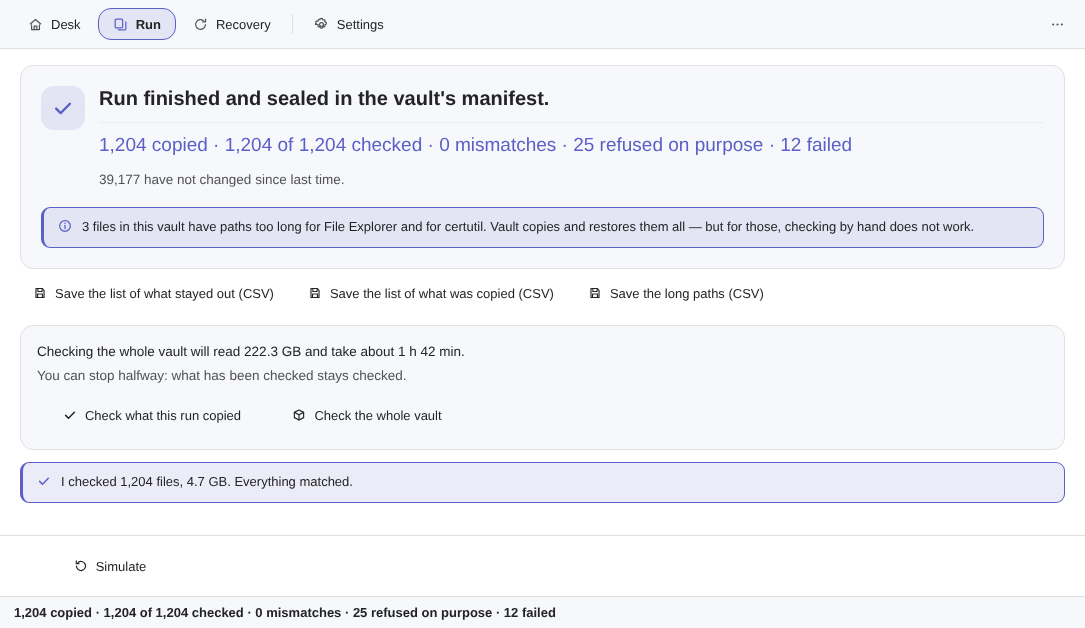
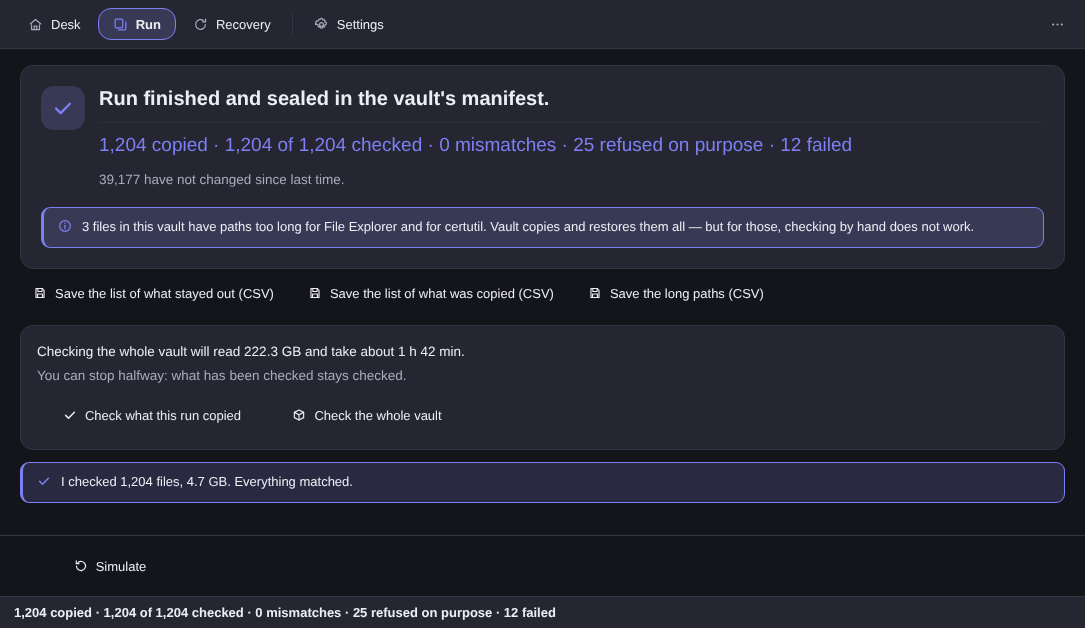
Those two buckets are what changes most for anyone coming off a silent backup: “I didn’t copy it because you didn’t want me to” and “I couldn’t copy it” are different pieces of news, and the second arrives with a name and a full path.
What Vault doesn’t do — on purpose#
Here is the part that decides whether this article is any use to you.
Version 1.0 does not keep old versions. Plainly: the vault is a mirror of now. Save over the good file, copy afterwards, and the vault holds the bad version. That is precisely the thing File History does and Vault does not. Version history is planned for 2.1, a free update. Even so, nobody should buy today for what exists tomorrow: if versions are your main need, the right tool today is one that keeps versions.
There is no schedule and no automatic copy. Not in the background, not as a startup task. With the program open, plugging in the vault’s drive opens the simulation; copying waits for your click. That is a decision rather than an omission: the number one failure in this category is the backup that ran alone, failed, and said nothing. If what you want is to forget the backup exists, Vault 1.0 will annoy you, and better to know that before installing.
A file another program has open stays out. There is no volume snapshot, because that would require administrator privilege, and no app in this house asks for it. The locked file shows up named, with its full path, in the list of what failed.
Cloud-only files are refused on purpose, since copying one would mean downloading it in full. The destination is a local disk, not a NAS. And the vault is not encrypted, which is exactly the property that keeps the copy readable on any PC without the program.
You can run both, and maybe you should#
The honest conclusion of this comparison is not “swap one for the other”. The two questions have different answers, and nothing stops you from having both running at once.
Leave File History looking after the day-to-day: it is good at its job, it is already paid for, and it rescues the file you ruined this morning. Then, four times a year, do the thing no automation will do for you: plug the drive in, copy, verify, and rehearse the way back. The guide to backing up to an external hard drive goes deeper into the copy itself.
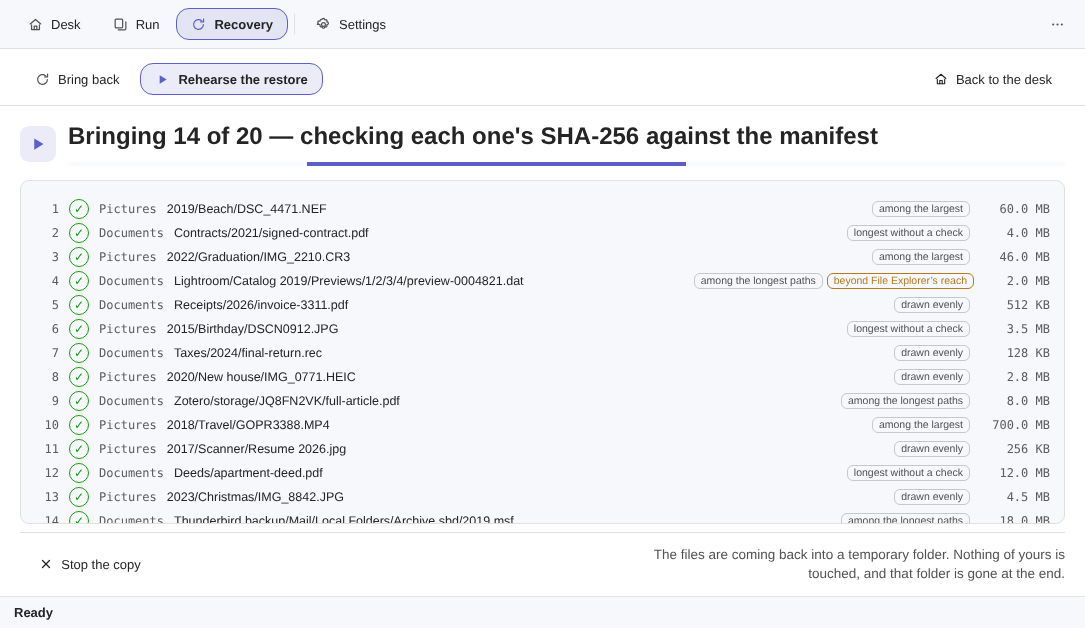
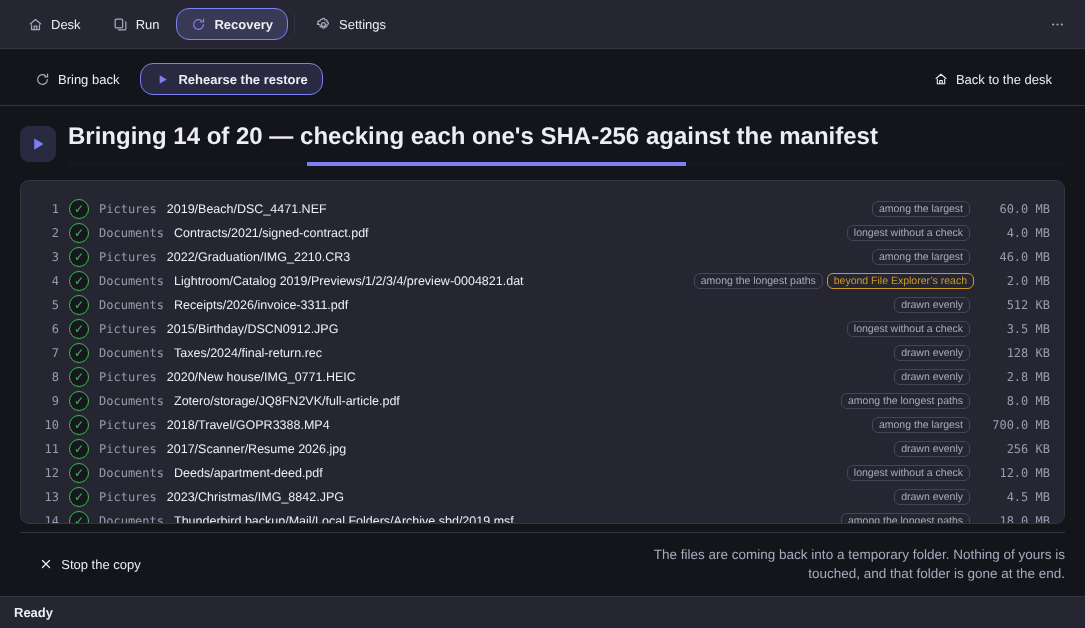
The rehearsal is the part that tends to become a habit. It draws twenty files with a method: some evenly, some among the largest, some among those longest without a check, and some among the longest paths, which is where trouble lives. It brings those twenty into a temporary folder, checks each fingerprint against the list on the disk, and says why each file was drawn. Then it deletes that temporary folder — the only place in the product, outside the Move, where this program deletes anything.
It is the answer that Control Panel page never gave you. If that sounds worth having, the Elegant Vault page shows the desk, the seal and the known limits, and the changelog says what has changed. The trial runs 15 days, no card and no account, and the licence is a one-time purchase: US$ 12.99 at launch against US$ 24.99 list. The trial gate blocks exactly one verb, copying.