 Elegant
Move files to another drive — and know everything arrived
Deciding to move files to another drive is the easiest job in Windows: select everything, drag, wait. The hard part comes afterwards, when the progress bar disappears and one question is left standing — did it all arrive?
It matters for exactly one reason: until that question has an answer, you are not going to delete anything off the old drive. It goes in a drawer, costing money and space, holding a copy that might be the only good one or might be junk. This post is about getting out of that limbo with proof in hand, and about why the last step — letting the source go — has to be the hardest one of the day.
Comparing folder sizes proves nothing#
The kitchen-table test is always the same: properties on both folders, side by side, compare the numbers. It fails in both directions.
Different numbers are almost never a problem. Every volume reserves space in blocks of its own size, and thirty thousand 3 KB files take up one amount on one drive and another amount on the next. Some files carry extra information stuck to them — the “this came from the internet” mark is the commonest — which survives or doesn’t survive depending on the route the copy took. And some files declare a huge size while occupying very little, because they are mostly emptiness; copy them and the emptiness can turn into real space on the other side. Windows itself reports “size” and “size on disk” differently, and most people compare the top one.
Matching numbers prove nothing either. One 3 GB video that didn’t make it and thirty thousand thumbnails that did will close the gap with room to spare. Size is volume. Your question was about content.
The right question is not “how much room does it take over there?”. It is: is every file that was here now there, and are its bytes the same bytes? That question only has an answer if somebody wrote down, at the moment of the copy, what each file was — and then read back what was written.
Three routes, and the hole in each one#
Dragging in File Explorer. This is how 95% of drive moves happen, and it verifies nothing. Explorer takes what it finds the way it finds it; if a file arrives crooked, the green bar still reaches the end. It is also the worst place to hit a problem: one dialog at minute 40 stops the queue, and you find out in the morning.
robocopy with /V. This is the route people who know use, and it is better — it logs, it resumes, it tells you what it did. But /V is not the guarantee most of the internet believes it is, and that is the part nobody writes down.
A Microsoft engineer explained this years ago, about the /V switch on the old XCOPY, and the argument holds today: when a program has just written a file and immediately reads it back, the answer comes from the system cache, not from the drive. Those bytes are still in memory — you put them there a second ago. The “verification” is, in practice, comparing one RAM buffer against another RAM buffer, and those two always agree, including when what actually reached the platter or the flash came out wrong. This is not a robocopy defect: it is what happens to any naive read-back performed right after a write, on any operating system.
Comparing by hand, with hashes. This works, and it is what the most careful people do: generate a list of fingerprints at the source, another at the destination, compare them. The hole here is not technical, it is human — two manual steps across forty thousand files. You do it once; on the second drive move you don’t; and the list ends up in a file nobody can find two years later, which is exactly when it would finally be useful.
What “verify” has to mean#
Three conditions, and all three tend to be missing:
- The fingerprint comes out in the same pass as the write. The number that identifies the file is computed over the bytes as they go past, not on a second read done afterwards. When a program copies first and comes back later to generate the number, a window opens between two reads — and that is where silence moves in.
- Verification reads off the device, not out of memory. That is the previous paragraph turned inside out: the read-back has to fetch the bytes from the drive, bypassing Windows’ cache, or it is checking its own memory of them.
- The proof lives on the same drive as the files, in readable text. If the list sits in the database of a program installed on your PC, you lose the proof along with the PC. On the drive, in text, it outlives the program, the computer and you.
Elegant Vault is built on those three rules, and the Move is its mode for the day you swap drives: it copies, reads back off the new drive, closes the seal and hands you a receipt in CSV with one line per file — including the ones left behind, each with its reason.
And here is the limit, said out loud instead of buried in a footnote: no software can prove what the firmware inside your USB enclosure kept in a cache of its own. You can ask Windows not to answer out of its memory; you cannot give orders to a controller inside a plastic box that lies about having written. Anyone promising absolute certainty there is selling something they don’t have. What verification does deliver is enormous and finite: it catches the bad cable, the interrupted copy, the sector that was born crooked and the file that rotted afterwards — and it names each one.
Why releasing the source needs three proofs and a gesture#
Now the part this post exists to write.
Copying is additive: if it goes wrong you try again and lose nothing. Deleting the source is the only move of the whole day with no way back, and so it cannot inherit its confidence from the move before it. “The copy finished without errors” is a statement about the past; the question that authorises deleting is about the present — is this file, right now, whole over there?
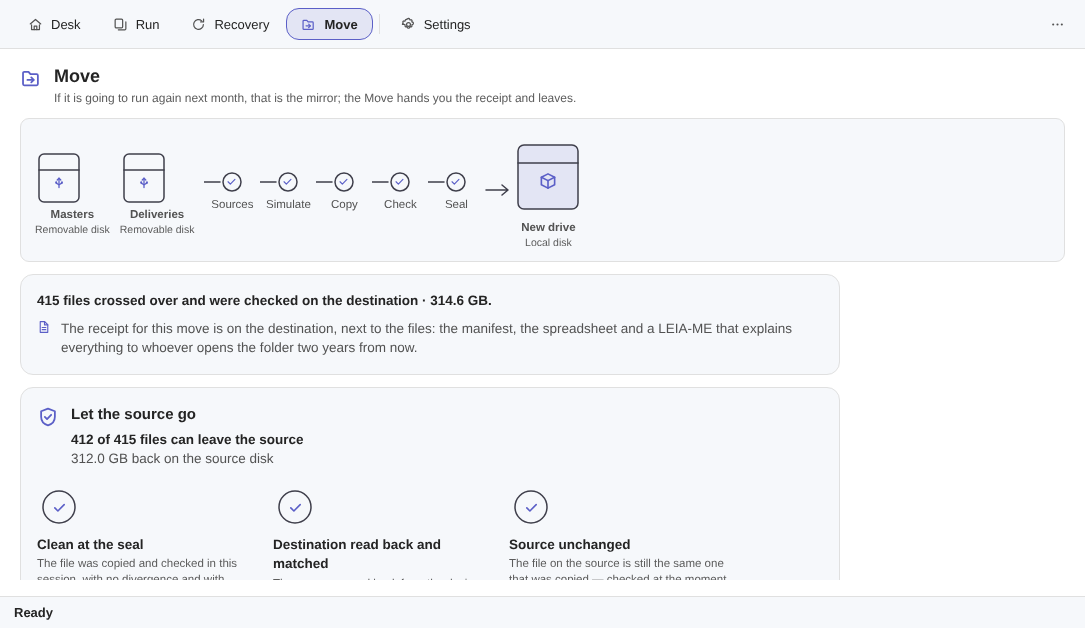
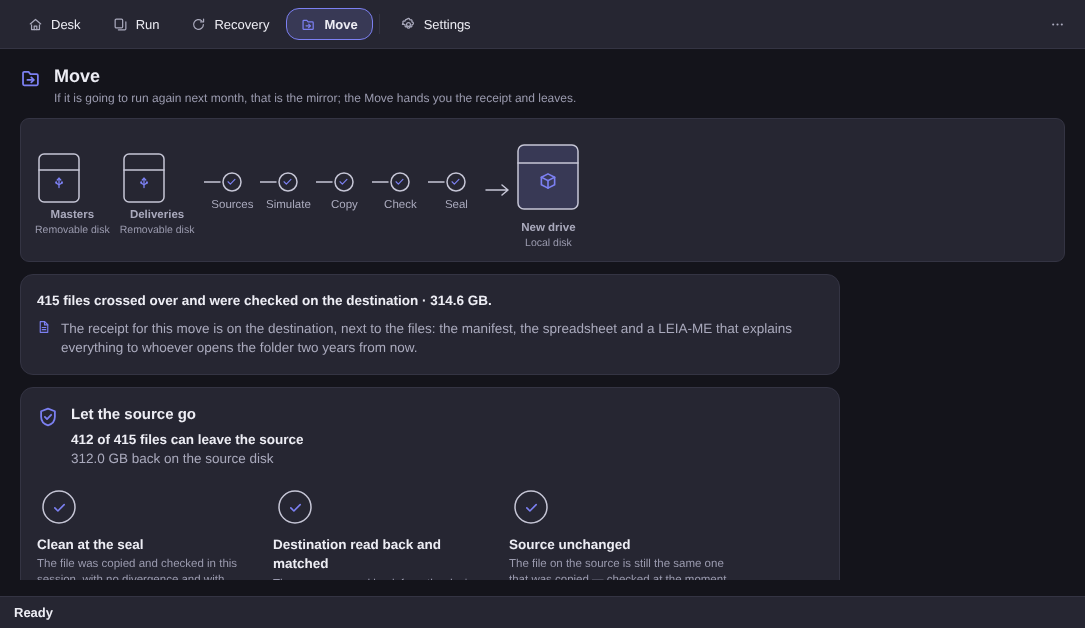
That is why the release is not a checkbox at the end of a wizard, and not a “finish and clean up”. It is a separate screen, which only opens once the seal is closed, and nothing on it comes pre-ticked. It does not offer you a folder: it offers each file, one by one, and only the ones that cleared all three proofs.
Proof 1 — the file is in the seal, clean. It has to appear in that crossing with no divergence. Anything that landed as a divergence, a refusal or a failure is never offered: it isn’t greyed out, it isn’t unticked — it isn’t there.
Proof 2 — the destination was read back off the device. The file is read back off the new drive, off the device and not out of Windows’ cache, and compared against the fingerprint written in the manifest. This is the proof that answers the /V problem.
Proof 3 — the source is still equal to what was read. Checked at the second of the gesture, not on the day of the copy. If anything touched that file between the crossing and the release — you, a program, a synced folder — it stays. What it proved is no longer what is there, and an expired proof is not a proof.
Failed one? It stays, it shows up named, and the screen says why. That is the difference between a program working for you and one working for its own report:
“412 of 415 files can leave the source”
“3 stay on the source, and here is why”
And after the three proofs there is still the gesture, which is the fourth lock and the only one that isn’t technical: somebody has to want it. Nothing here happens through inertia, a pre-ticked box or a schedule — there is no scheduler, no startup task and no background process, not for copying and not for releasing.
The Recycle Bin first — and the number that stays on screen#
When the source drive has a Recycle Bin, that is where released files go, always. It is the preferred route because it leaves a net under the trapeze, and the net is worth more than saving two clicks.
It comes with a built-in disappointment we would rather hand over in advance:
“The Recycle Bin is on the SOURCE drive (D:). These 312 GB only come free once you empty it.”
Someone who releases 312 GB and watches free space refuse to move assumes the program failed. It didn’t — the files are still on the same drive, inside its Bin, and they only leave when you empty it. Better to read that on screen than to discover it on the space bar.
And the caveat that travels with it: the Bin has a quota. A large batch can push older items out of it, and whatever does not fit, Windows deletes for good — the shell says “moved” and that item is gone. That is why the receipt records what actually happened to every released file. It is not a comfortable caveat; it is the true one.
Where there is no Recycle Bin: the typed word and the fourth proof#
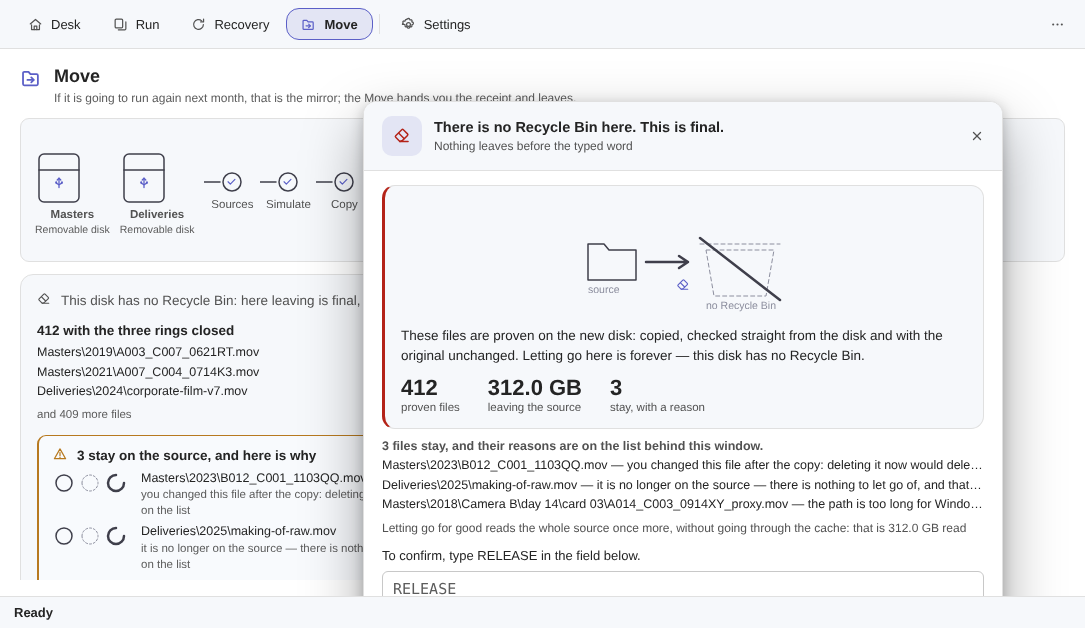
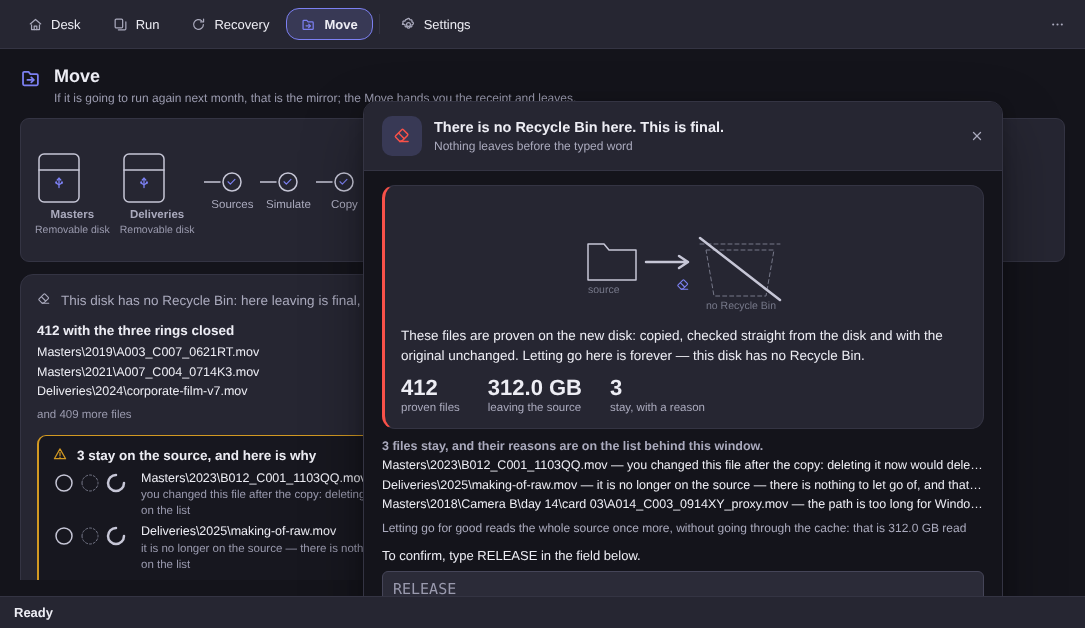
Memory sticks, external drives, memory cards: Windows keeps no Recycle Bin on those volumes. Deleting there is permanent, and a program that pretended otherwise would be lying on the most expensive screen it has.
So the screen changes character and does three things: it says out loud that this is permanent, it shows the numbers — how many files, how many GB — and it asks for the typed word. Not an “are you sure?” you can click through without reading; a blank field where your own hand has to write, which is the only confirmation gesture that cannot be performed on autopilot.
And the proof goes up a step: on that path the source is read back and re-checked against the manifest immediately before each file is let go, file by file, so that the window between the proof and the verb is the smallest this design allows. On a route with a Bin, three proofs and a net underneath; on a route with no way back, four proofs and no slack.
There is one more route where the door does not open at all: a source on a network drive stays untouched. Copying from a network folder works normally; releasing it does not happen. On the other end of that cable is a machine whose behaviour we do not control, and the honest answer is not to offer.
What this program does not do#
A short table, because people looking for how to transfer files from one hard drive to another often want one of four things — and three of them are not this tool:
| The job | Here |
|---|---|
| Get files from an old PC to a new PC over the network | No. The Move is between drives on the same machine; for changing computers, Windows handles it during setup |
| Preserve permissions, ownership and auditing on files | No. The copy is of the files and the folder tree, not of the permissions |
| Clone the whole partition, Windows and programs included | No. That is disk cloning, a different category and a different tool |
| Run on its own, on a schedule, unwatched | No, and never. A backup that runs in the background is a backup that fails in the background |
Having said what it isn’t: what it is fits in one sentence. A day with a date on it, when your folders cross over to the new drive with per-file proof and a receipt at the end — and, if you ask, the source released on the strength of that proof.
The Elegant Vault page shows the crossing, the three proofs and both confirmation screens, and the questions people ask before buying are answered on the same page, spelled out. The trial runs 15 days on your PC, no card and no account, and the licence is a one-time purchase: US$ 12.99 at launch against US$ 24.99 list. Verifying and restoring never expire, not even after the trial.
If the new drive has already arrived, the 2.0 announcement walks through the whole day, from the wrapper to the receipt.