 Elegant
Bit rot is real: check the files on your external drive
Someone asked for a photo from a birthday in 2015. The external drive had been in a drawer since the last house move, cable coiled beside it. Plugged in, letter appeared, folder was there. So was the file: right name, right 3.5 MB, right date, thumbnail loading normally. Then the photo opened, and half of it was a gray band.
The photo opened half gray — and nobody had touched it#
That file had not been opened since 2016. The drive wasn’t clicking, wasn’t asking to be formatted, hadn’t vanished from File Explorer. Somewhere in those nine years the bytes stopped being the same bytes, and nothing said a word.
That is the honest shape of bit rot on an external hard drive. Nobody serious will give you a lifespan in years for your drive in your drawer, because that number doesn’t exist. What can be said with confidence is the rest: when a file goes bad sitting still, it does so quietly.
A drive in a drawer is not carved in stone#
An external drive is a physical object kept in a warm drawer next to an old charger and a screwdriver. Given enough time, a file nobody reads can stop being exactly what it was. That is all the frightening name amounts to.
Slow decay of the media is the famous half of the problem, and it isn’t always the common one. A file can also have arrived wrong: a marginal cable, a copy interrupted at three in the morning, a drive yanked without waiting. The outcome is identical either way: the file is still in the folder with the right name, the right size and the right date. Only the contents are no longer the contents.
A drive can tell you whether the drive itself is healthy. What it cannot tell you is whether your photo from 2015 is still your photo from 2015. Those are two different questions, and most people asking do hard drives degrade unused are asking the second one while thinking they asked the first.
Why you only find out on the worst day#
Because nobody re-reads. That is the entire answer, and it is duller than any technical explanation. Windows does not look over your files on its own: the disk check that ships with it examines how the volume is organized, not the contents of what is stored. It is the filing clerk’s exam, not the document’s. A drive passes it with flying colors while holding a half-written JPG.
Copying in File Explorer verifies nothing either. It carries what it finds, as it finds it: if the file was already wrong, you just made a faithful copy of a wrong file, and the green bar reached the end all the same. That is how silent data corruption travels. Next month’s backup writes the bad version over the good one, the sync tool spreads it to the second drive, and a year later the photo is broken in all three places you believed were safe, the three copies agreeing with each other.
When you finally go looking for help, searching for photos corrupted on external drive lands you on data recovery firms. They are excellent, and they exist for a different case: the drive that stopped mounting, that clicks, that asks to be formatted. Sunday’s drive has none of that. It works beautifully. It’s the file that doesn’t.
One fingerprint per file, stored on the drive itself#
The only way to answer “is this file still the same file?” is to have kept, at some point, an answer to compare it against. That is what it means to verify file integrity, and the missing piece has a name: a fingerprint (SHA-256). At the moment of the copy, the file yields a fixed-length number that changes entirely if a single byte changes. With that number saved, “is everything fine?” stops being a program’s opinion of itself and becomes arithmetic you can redo.
Two conditions make the idea worth anything in practice, and both are usually forgotten:
- The fingerprint has to live on the same drive as the files, in readable text. If it lives in the database of a program installed on the PC, you lose the proof along with the PC, and the drive in the drawer goes mute again.
- It has to be computed during the copy, in the same pass as the write. When a program copies first and comes back later to generate the number, a window opens between two readings, and the silence moves into that window.
Elegant Vault is built on those two rules. It copies your folders 1:1 to a drive you own and, as the bytes go past, computes the fingerprint over them, writing one line per file into a plain text manifest at the root of the drive. Beside it sits a trilingual LEIA-ME.txt teaching you to check a file by hand with the certutil that ships with Windows.
From here on this post assumes the copy exists. If your drive is still a pile of dragged folders, the route is in the post about backing up to an external drive.
Check everything, with the time stated first#
Checking means re-reading the bytes on the drive and doing the sum again, file by file, against the manifest. It is pure reading. Because it takes a while, the number appears before the button rather than after it: “checking the whole vault will read 222.3 GB and take about 1 h 42 min. You can stop halfway: what has been checked stays checked.” But the part that changes the habit isn’t the button. It’s the desk remembering for you.
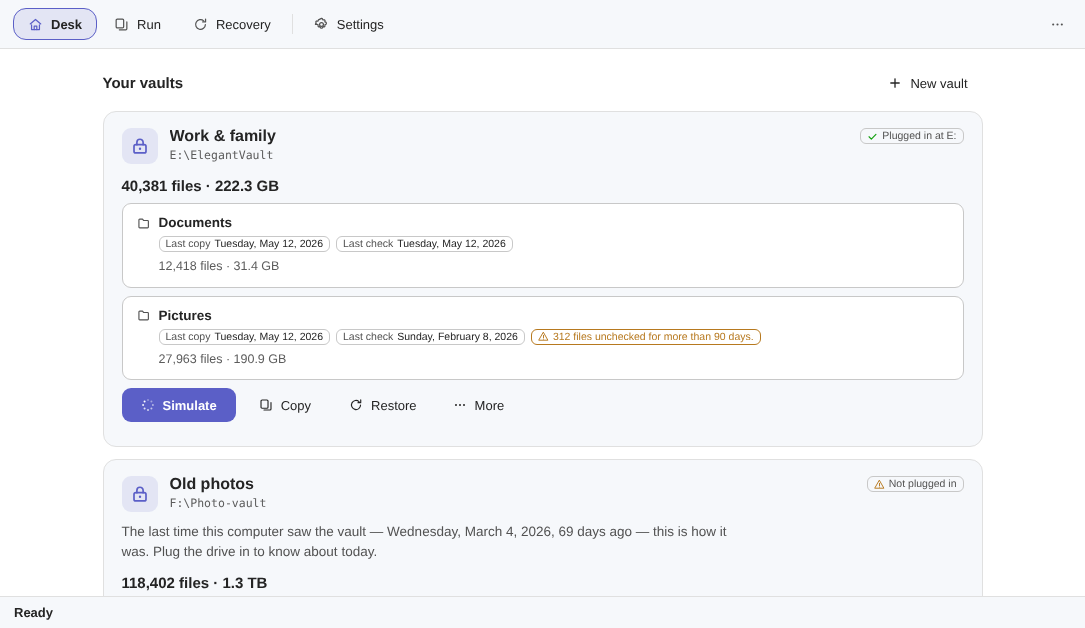
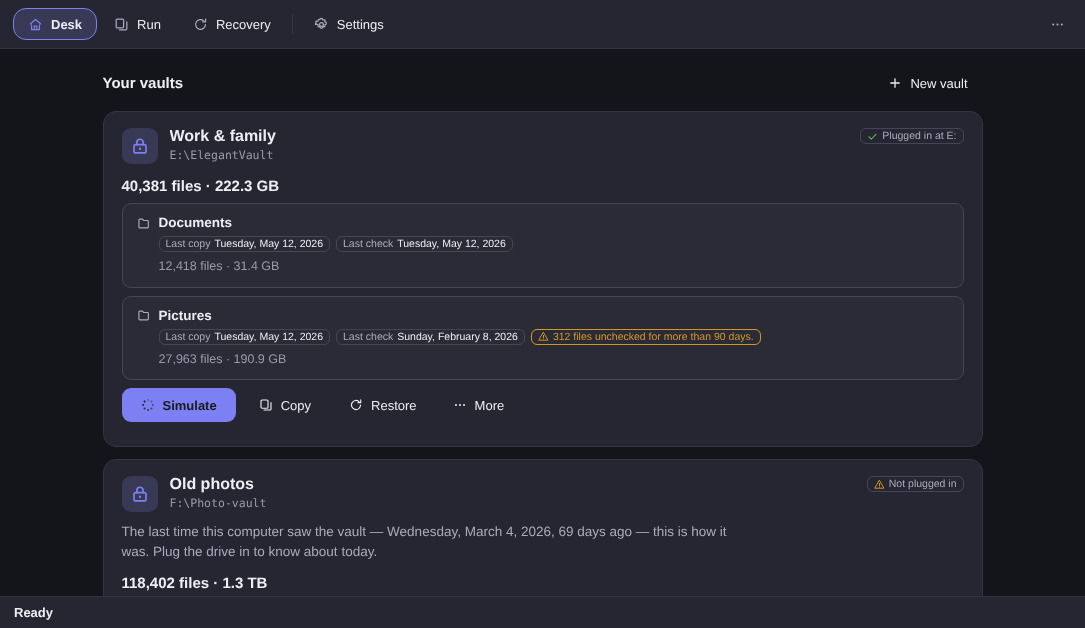
Look at that second card. The drive isn’t plugged in, and the app doesn’t invent an opinion about it. It shows how the vault looked the last time this computer saw it, says that was 69 days ago, and asks for the drive. A drawer that announces “69 days” is a good deal less quiet than a drawer.
One limit belongs here rather than in a footnote: checking proves the copy, not the read. If the file was already corrupt on the PC the day it was copied, the vault received and will faithfully verify a corrupt copy.
The 40-second rehearsal, every so often#
Checking the whole vault is the full examination. The rehearsal is the routine one, and it takes about 40 seconds. It draws twenty files and brings all twenty genuinely back into a temporary folder, verifying each fingerprint. The draw has a stated method: some evenly, some from the largest, some from the longest paths, and some from the ones longest without a check. That last criterion is the one that matters if silent decay worries you: the rehearsal goes looking in the corner of the vault nobody has touched in years.
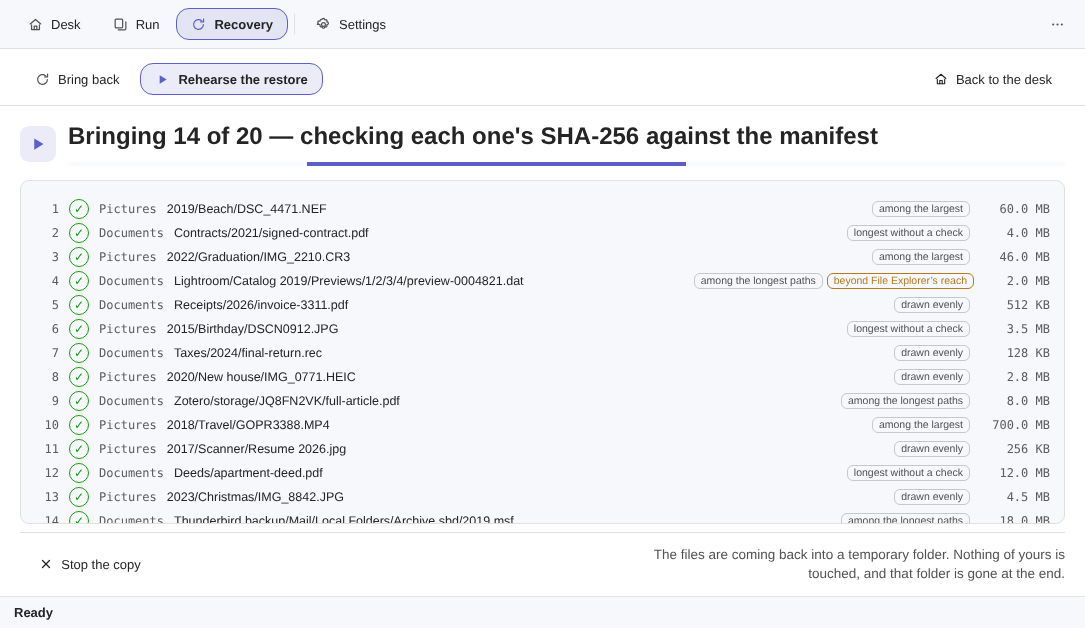
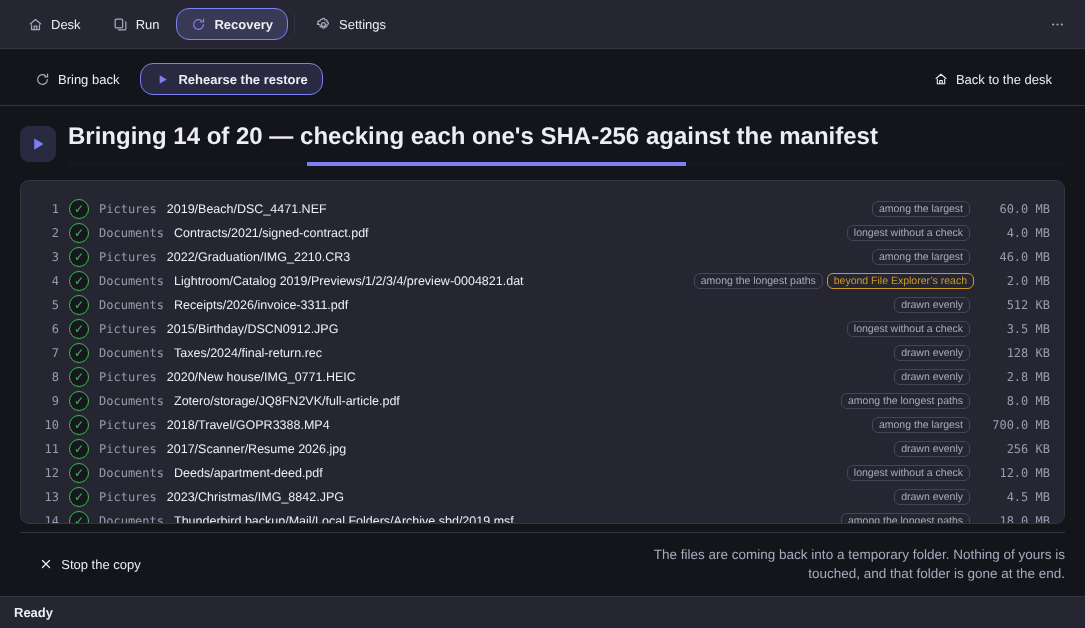
2015/Birthday/DSCN0912.JPG, drawn because it was the one longest without a check. That is precisely the file from the story above, found before Sunday.At the end the temporary folder disappears: outside the Move, it is the only place in the product where this program deletes anything, and what it deletes is something it created itself. Twenty verified files do not prove forty thousand, and the app never pretends they do: a rehearsal is a sample, not a restore. What it proves is that the chain between drive, cable and your Windows still hands over what it should, in less time than it takes to make coffee.
It found a mismatch: now what?#
A mismatch is what the interface calls a file that no longer matches the fingerprint it had when it arrived in the vault. The app tells you which ones, by name and path.
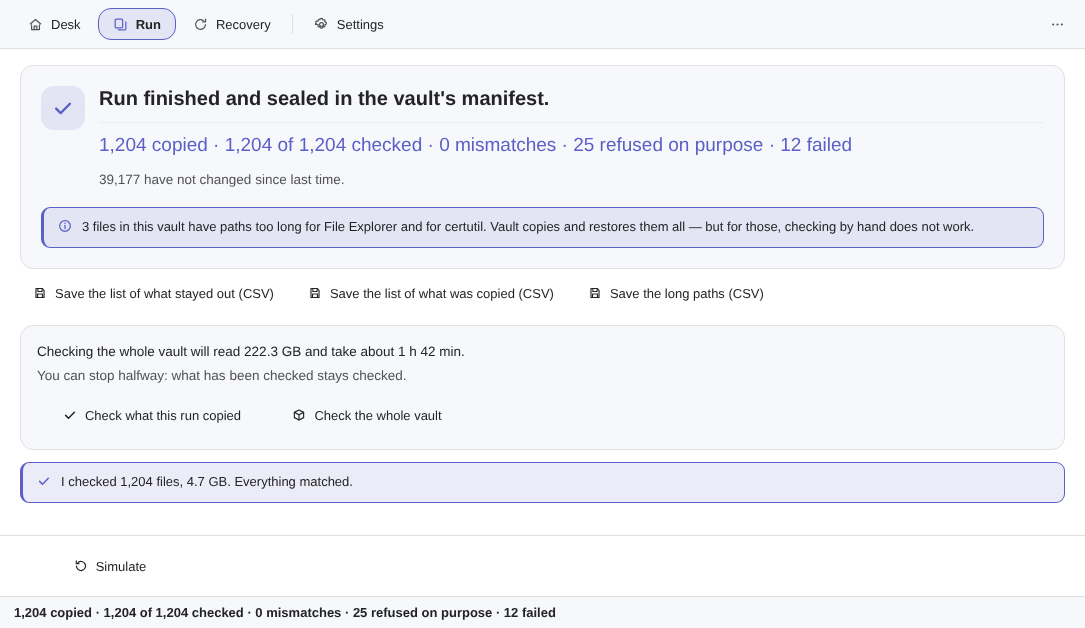
Now the part no vendor enjoys writing: detecting is not repairing. This version has no parity data and no self-healing; it points at the file and hands the decision back to you. With the list in hand:
- Open the matching file at the source. If the one on the PC is fine, the repair is a fresh copy into the vault, and you’ve had a good day.
- If both are bad, the good version has to come from somewhere else: the old drive, the forgotten USB stick, the email you once attached it to.
- If there is nowhere else, that’s the lesson of the day and it cost a file. The best medicine against silent corruption is not software at all: it is two copies, checked on different dates.
There is one case checking by hand can’t reach: very long paths. The app copies and restores those files normally, but File Explorer and certutil cannot reach them — and the interface says how many are in that state instead of letting you find out on the worst day.
A routine that fits one afternoon a season#
There is no law about how often to check, and be suspicious of anyone who quotes a number. There is a modest routine that works: plug the drive in when the season turns, let the check run while you do something else, and run the rehearsal before the drive goes back in the drawer. Four afternoons a year.
The app won’t do it for you, and that is deliberate: no scheduler, no startup task, no background service — a backup that runs in the background is a backup that fails in the background. With the app open, plugging the drive in opens the simulation, and the rest waits for your click. Other limits, said here rather than discovered later: this version keeps no older versions (history arrives in 2.1, a free update), the destination is a local drive rather than a NAS, and the vault is not encrypted, which is what keeps it readable on any PC without this program. The rest is in the changelog.
Checking is no substitute for the second copy: it warns you in time for there still to be somewhere to run. If the archive in question is a photo library, it’s worth sorting it by capture date before it goes into the vault.
The Elegant Vault page shows the desk, the seal, the rehearsal and the known limits spelled out. There’s a 15-day trial on your PC, no card and no account, and the licence is one-time: US$ 12.99 at launch against US$ 24.99 list. Checking and restoring never expire, not even after the trial.