The scanner spits out scan0001.pdf, scan0002.pdf, scan0003.pdf. Your phone hands you fourteen photos of receipts with the kitchen table in the frame. And you need one document: right way up, searchable, small enough to email.
Elegant Paper · merge, split and OCR PDFs · Windows 10 and 11
The job takes two minutes. The price they charge for it is your document.
Turn the Wi-Fi off and it works exactly the same.
Elegant Paper is the third option: a Windows app that does the whole job on your own machine. No upload, no account, no cloud — and no HTTP client inside the app. The only network connection that exists is the licence and 15-day trial check against the Microsoft Store, made by Windows’ own API: it never sees your files, and it is fail-open — if the Store is unavailable, the access already granted stays.
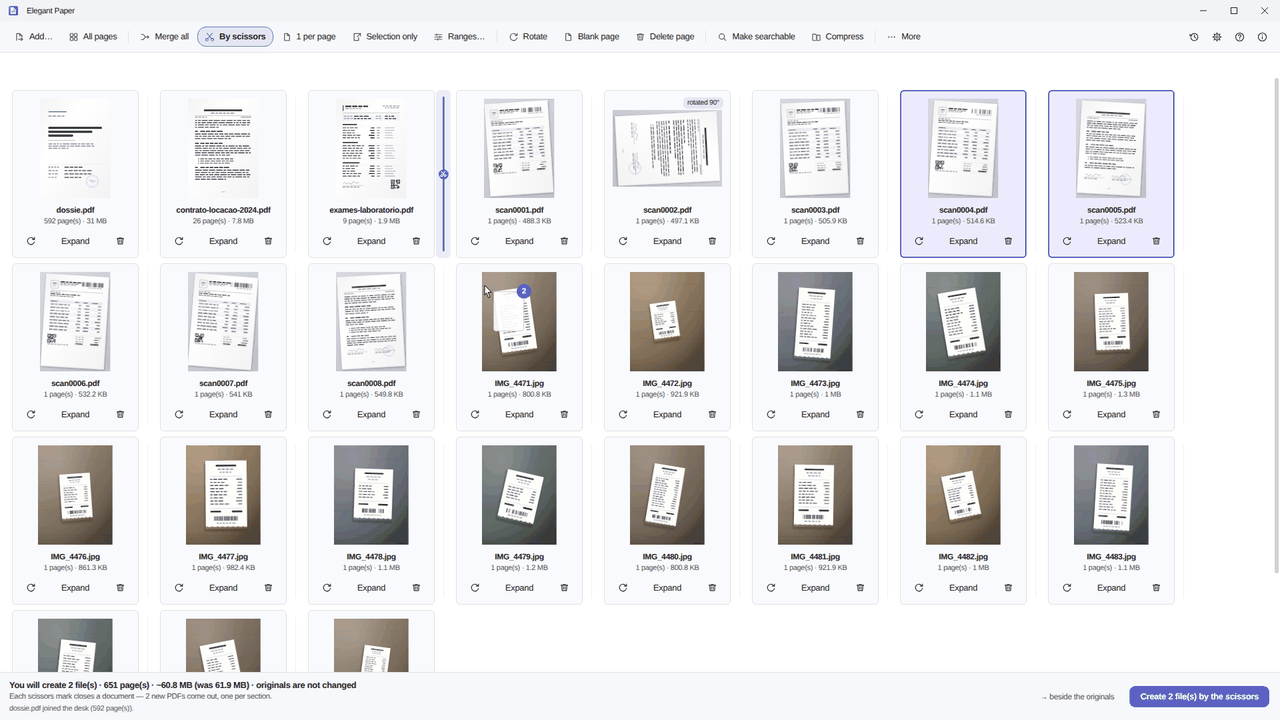
You don’t hunt for the operation in a menu: you arrange the pages and hit generate.
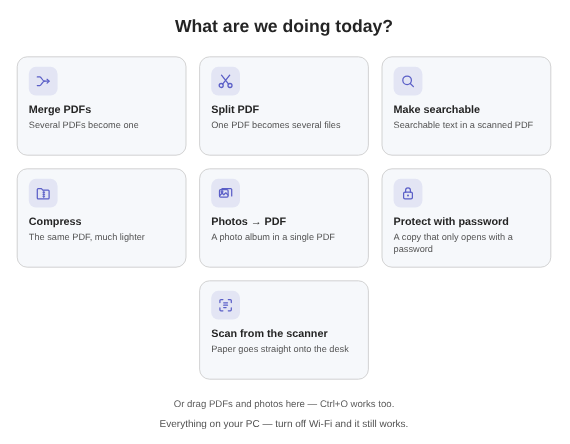
Drag PDFs and photos onto the window, or use Add…. Every file becomes a card, and Expand opens that file’s page grid.
Drag to reorder, Rotate what came in sideways, Delete page on what you don’t need. One click between two cards drives the scissors in.
Make searchable, watermark, stamp, sign, password — each becomes a row in a list, and nothing is written yet. A chip beside the button counts how many things are going into the file.
The bottom bar tells you how many files, how many pages and how much it will weigh. Pick the mode — Merge all, One per document, By scissors, Ranges…, 1 per page or Selection only — and click once.
OCR, split, stamp, password, merge back — that used to mean five files, four of them destined for the bin. Here it is all one list, and one file comes out. If you only ever merge two PDFs, you never see any of these words.
Illustration of the list (Ctrl+L) — the watermark is switched off and still there, options intact.
Switch the watermark off and the pages clear in the same frame — without undoing the two steps in front of it. Undoing a PDF is impossible; deleting a row is not.
The watermark, the stamp and the page number are drawn on the thumbnail, in the corner and at the angle they will occupy in the PDF. A ≣ badge marks the sheets that receive something — and only those.
Password, “lighter” and “no metadata” are not steps: they are how the file comes out, applied at the end. Stamping after protecting simply works.
The One per document mode keeps each file’s own name — no five invoices turning into one “invoice (merged)”.
Merging an A4, a Letter and a phone photo used to hand you a document of uneven sheets. Now it can come out all A4 or all Letter, fitted without cropping and without stretching the landscape page.
New sheets come in clean, always — not by promise, by construction. A strip offers to repeat the round on them, to pick item by item, or to leave them as they are.
Save what you have just assembled. Applying a recipe generates nothing: it loads the list back for you to check before saving.
While you mark things, the disk is not touched. The button reads Save 1 file and that is the only moment anything is born — always a new file, never over yours.
None of this asks for the internet, and none of it changes the original. During the Save the file is built in a working folder that lives for seconds and disappears when it ends — described in full in the privacy policy.
The desk shows what will come out before you click. The app decides with you, never for you.
Every page on the desk becomes one single new PDF, in the order you left them.
Each file on the desk comes out as a new PDF with its own name. It is what stops five invoices with OCR from becoming a single file.
One click between two cards drives the scissors in. Each mark closes a document: several PDFs come out at once, one per section.
Type 1-5, 8, 10- or ask for "every N pages". The preview updates as you type and tells you how many files will come out.
Every page on the desk becomes a separate PDF, in the same folder, with no manual numbering.
Tick the pages that matter and extract just those into a file of their own.
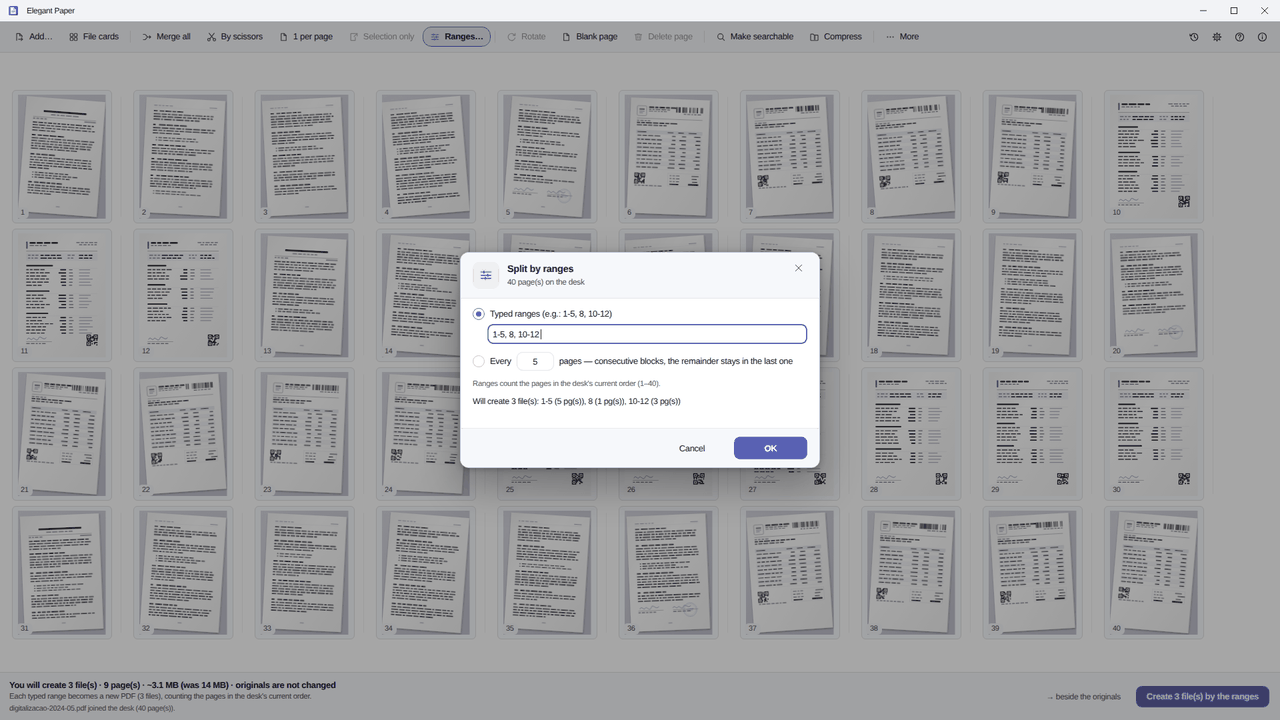
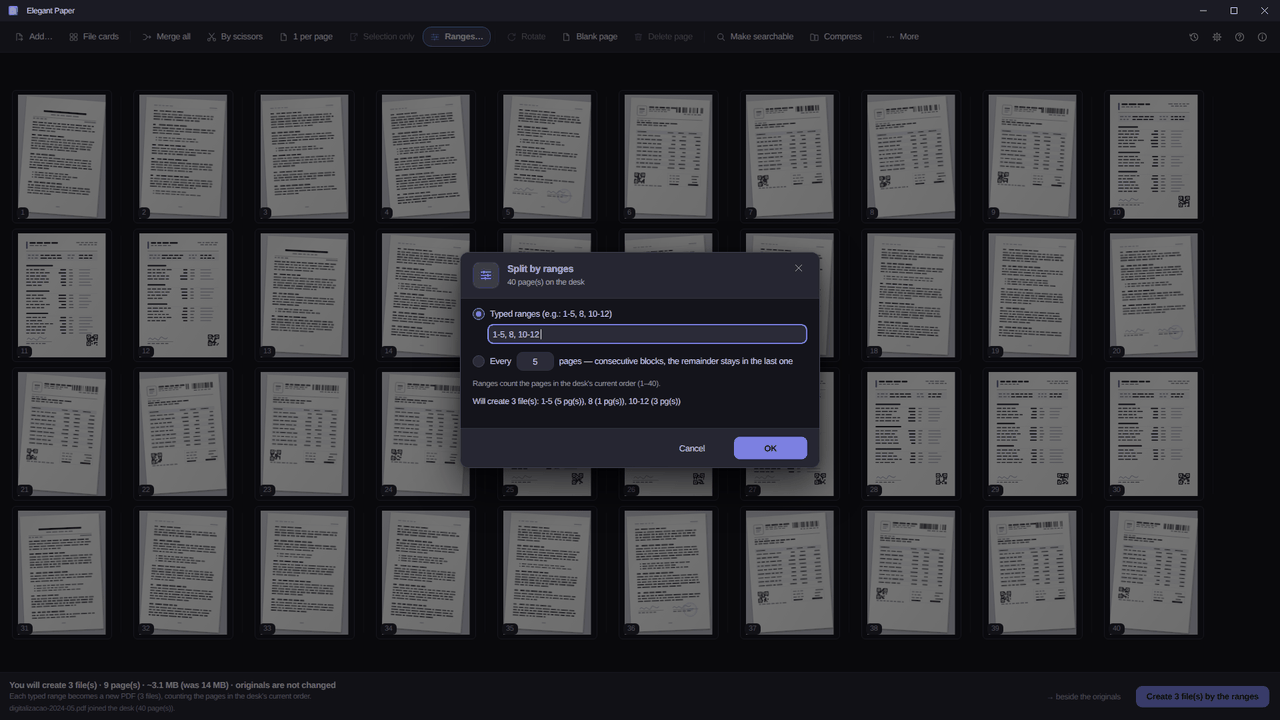
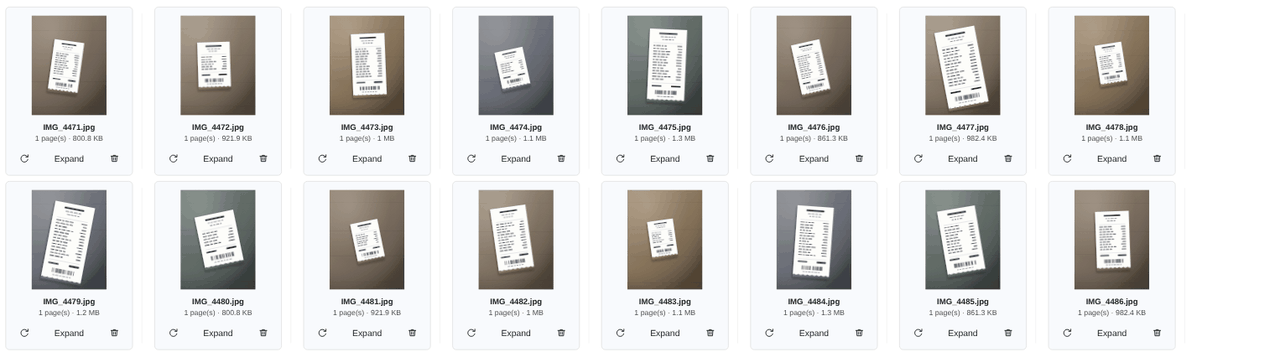
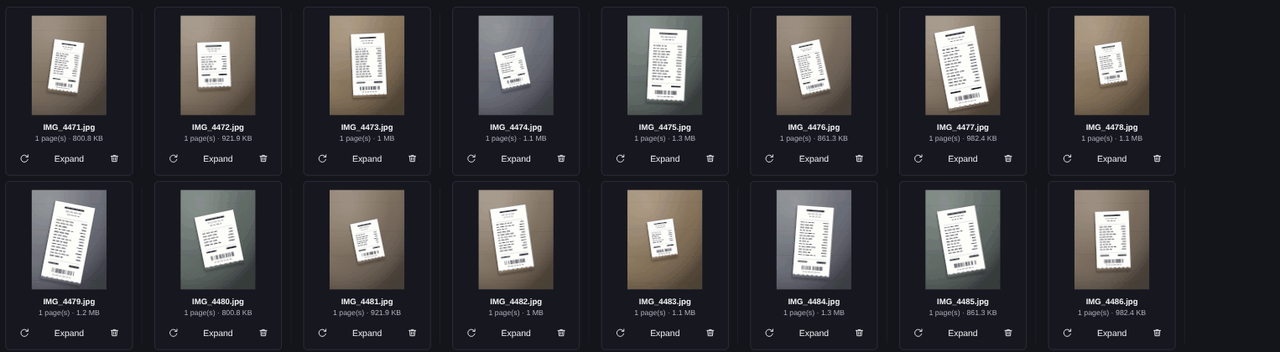
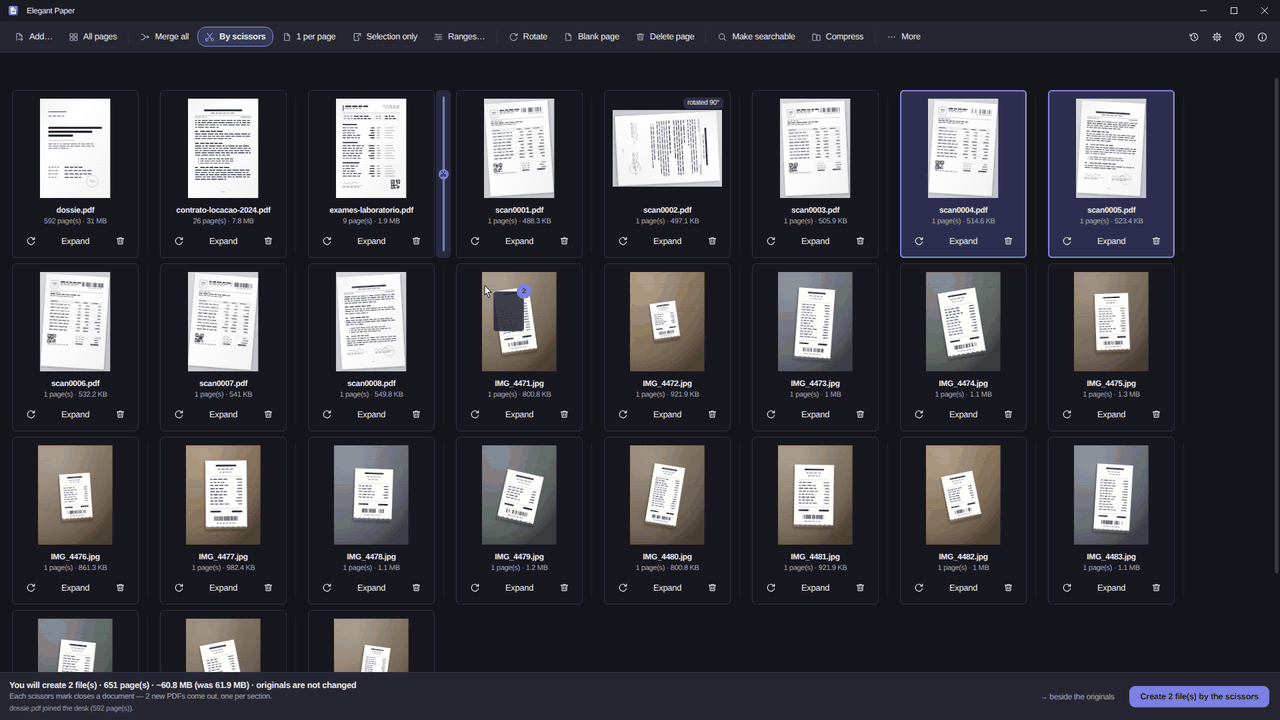
Real captures, in your theme. Click any one to open it full size.
The names below are the same ones on the toolbar and in the app’s "More" menu — and none of them asks for the internet. Make searchable, page numbers, watermark, stamp and sign go into the desk list and all come out in the same file; password, weight, metadata and page size are how the file comes out.
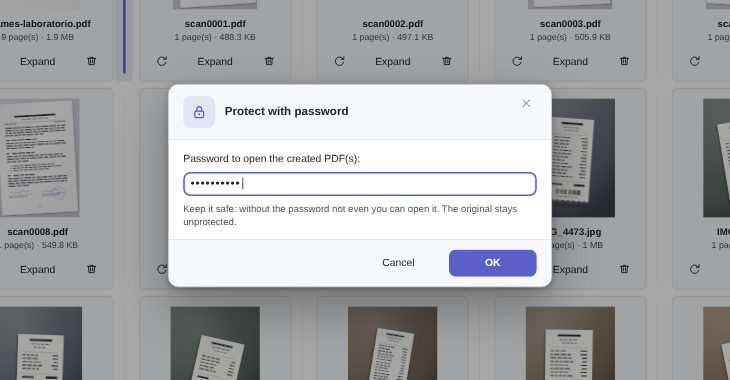
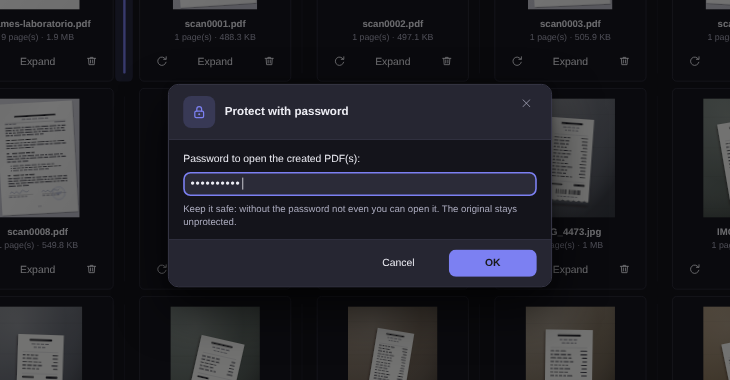
An invisible text layer under the scan, using the recognition engine built into Windows. In batch, with progress.
When there is nothing to gain, it says the PDF is already compact instead of handing you a worse file.
A copy that only opens with a password (AES-256). Remove password gives you an open copy when you know it.
Author, software and the history the file carries around are stripped from the copy it creates.
Position, format and which page to start from.
A light text running across the pages — CONFIDENTIAL, COPY, the client’s name.
A small text box in the corner: first page only, or every page.
Your signature image, dragged to where it has to land — your width, your opacity, and only on the sheets you tick.
Geometry, not AI: it measures the tilt and squares the page up again, without inventing a single pixel.
Keep each one, all A4 or all Letter — fitted without cropping, with each sheet’s orientation preserved.
The list of paperwork on the desk — file, pages, size, and the first lines of whatever went through OCR — ready to open in a spreadsheet.
The text OCR recognised in this session, one file per document. No recognition ever runs behind your back to fill this in.
The first two get a section of their own further down: make searchable and compression that doesn’t lie. None of them touches the original — the output is always a new file.
The desk takes what real life hands you and gives back a new file — with two ways back, in case you change your mind.
Drag them onto the window — or bring the paper in directly: Scan… pulls pages in over WIA, feeder included, without going through the manufacturer’s app. HEIC works when Windows has the HEIF Image Extensions installed; if they are missing, the app says exactly that instead of failing quietly.
A 600-page PDF takes one card; Expand opens that file’s grid, page by page. A double click (or Z) opens the sheet full screen, because deciding whether it stays means reading it; ← and → turn the pages, Esc closes. That is where you drag to reorder, rotate what came in sideways and drive the scissors in between two documents.
Next to the original (recommended) or in the folder you pick. A repeated name gets a suffix; nothing is overwritten.
A 12-second toast — or Ctrl+Shift+Z — sends what was created to the Recycle Bin. Nothing vanishes for good, and the original is never touched. The toast’s clock stops while your keyboard focus is inside it.
The paperwork you repeat every week becomes a saved recipe: the steps run in sequence, each one feeding the next, all into new files.
Elegant Paper’s OCR runs on the recognition engine already built into Windows: in batch, with progress and cancel, with no server in the middle. It does not replace the image of your page. It puts an invisible text layer underneath it, and the file still looks like the scan you know.
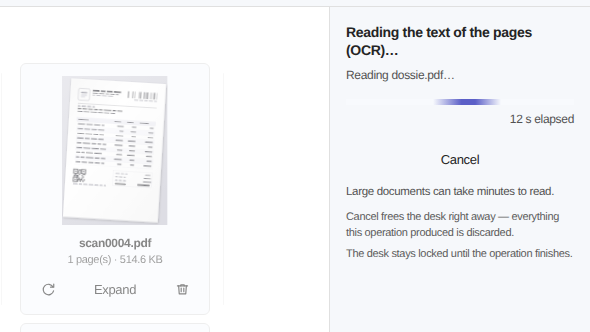
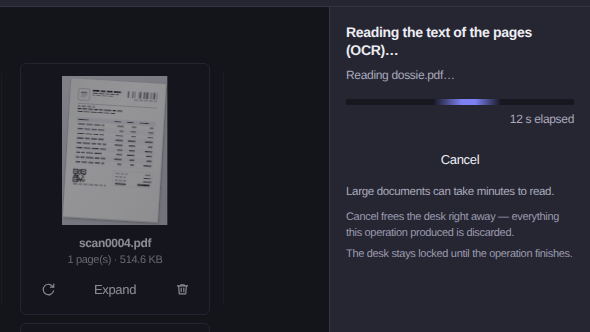
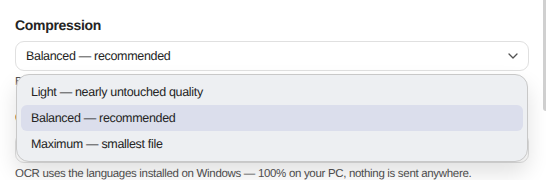
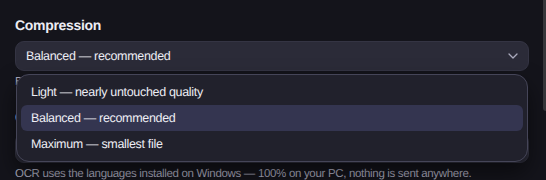
Three steps, each saying what it does to the quality: Light (nearly untouched quality), Balanced (recommended) and Maximum (smallest file). The number is no guess: at the end, the app tells you what actually happened — "Compressed: 45.8 MB → 18 MB".
If Elegant File Explorer is installed, a chip lights up on the desk: "I found Elegant File Explorer — 3 extra things just became available". None of it is a toll: without EFE, Elegant Paper does everything this page promises.
The file it created opens already selected in its folder, inside the house file manager.
When the EFE Finder matches a word inside a PDF, Elegant Paper opens at that page and highlights the passage.
Paper writes a rule that files what the scanner spits out on its own. It arrives disabled, with a preview, on the other side.
The house has three apps, and the division of labour is stated out loud: Elegant File Explorer clears the byte-for-byte copies, Elegant Photo Cleaner handles the look-alike photos — the ones with different names, sizes and dates — and Elegant Paper handles the paper. None of the three needs the others to work.
elegantpaper --ocr contrato.pdf
elegantpaper --compress contrato.pdf
Windowless compression is the lossless path only: resampling a scan trades text for image, and the app only does that on the desk, after you say yes.
Available on the Microsoft Store. The promotional launch price runs until 28 October 2026.
Yes, and that is the normal way: make searchable, split, stamp, add a password, watermark and merge back all go into a list and come out in the SAME file, in a single click. While you assemble it, nothing is written — you can remove a step from the middle, change its options, or switch a row off and keep it for later. Ctrl+L opens the list.
No. No upload, no account and no cloud: your documents are processed on your computer and never leave it, and the app has no HTTP client. The only network connection that exists is the licence and 15-day trial check against the Microsoft Store, made by Windows’ own API — it transmits neither the content nor the metadata of your files, and it is fail-open. Take the PC off the network and run the whole job to check.
It does. It uses the recognition engine already built into Windows, with the language packs installed on your machine. Nothing is sent anywhere.
Never. The output is always a new file next to the old one, and a repeated name gets a suffix. The 12-second undo sends what was generated to the Recycle Bin, never the original.
It signs the visual way: you put your signature image on the sheet, wherever you want it, at the width and opacity you choose — and you can sign only the sheets you tick. What it does NOT do is a digital signature with a certificate (eIDAS, ICP-Brasil, Adobe-trusted): the password it applies is the PDF’s own encryption, not a legally binding signature. The app says so on the signing screen itself.
No. It does not edit the text inside a PDF and it does not fill in or create forms. What it now does is PRESERVE the fields of a form that already exists: an application form with fillable fields crosses the desk with them alive, and when something forces the pages to be rebuilt the warning says so first, naming the file at risk.
Because compression only touches the images inside the file: a PDF that is already pure text will barely shrink. In that case the app says the PDF is already compact and creates nothing, instead of handing you a worse file.
On the scan and on the language pack installed in Windows. It uses the recognition engine already built into Windows, and if the language you need is missing, the app opens the right screen for you to add one.
It never becomes your default .pdf handler behind your back. If you want that, it takes you to the Windows screen where you decide.
No. Elegant Paper is complete on its own. With EFE installed, shortcuts between the two appear — a bonus, never a toll.
Neither. It is a one-time purchase with a local trial, no card, and nothing is stamped on the file it creates.
It has two clocks and the last one standing wins: a 15-day trial OR 20 documents generated. That is deliberate, because this app is used in episodes — someone who installs it on a hectic Tuesday, sorts out that day’s contract and comes back in September should not find the door locked. And when the trial ends the app does not slam that door: the desk stays laid out, the numbers stay real and the preview keeps drawing — what the purchase unlocks is writing the file.
It can. elegantpaper --ocr contract.pdf and elegantpaper --compress contract.pdf do the job, write the new file next to the original and exit without opening the desk — which is what turns the scanner folder into one line of a .bat, with no cloud and no background service. In that mode compression is the lossless path only: resampling a scan (which trades text for pixels) stays an offer on the desk, with an explicit yes.
Yes, as long as you know the password: the app asks for it to put the document on the desk, and the rest works as usual.
Merge, split, make searchable and compress on your own Windows PC. The original stays exactly where it is.
Available on the Microsoft Store. The promotional launch price runs until 28 October 2026.
 Elegant