 Elegant
Back up files to an external hard drive on Windows
Almost every external drive on earth was bought the week after a scare: the laptop that would not wake up, the photo folder lost in a reinstall, the video that only ever existed on a stolen phone. Then comes the purchase, the first copy — and two years of silence.
The easy half of the job is to back up files to an external hard drive: dragging folders onto a disk is something anyone can do. The hard half is not copying, it is knowing the copy arrived whole. That is the difference between a drive in a drawer and a backup.
The backup you never tested is the one you’re relying on#
Nobody finds out their backup stopped on the day it stopped: they find out on restore day, the worst possible day. And what happened is usually one of four things, none of them loud:
- The disk filled up. The copy went as far as it could and the rest stayed behind. The report said “completed”.
- A folder lost permission. Still on the list, still ticked, and not a byte of it has gone in for eight months.
- A file was open. Skipped without a word — and it was the database of the program you use every day.
- The cable came out at three in the morning. The program wrote down that it copied. The drive disagrees.
In none of those four cases was there an error on screen: there was an incomplete copy wearing the face of a complete one. Which is why the question that matters is how to know if a backup worked.
Three routes, three holes#
Searching for Windows 11 backup to external drive leads to one of three answers. All three work; all three have the hole in the same place.
The cloud subscription
It charges forever, keeps your files on a stranger’s computer, and when you need everything back the bottleneck is your own line: 400 GB down a home connection is not a plan, it is a weekend. People looking for backup without cloud want to pay once and hold the copy.
The folder sync tool
Fast, cheap and the most dangerous of the three, because it mirrors mistakes along with files: deleted at the source, deleted at the destination. Syncing keeps two places identical; backup keeps one place safe precisely when the source goes wrong.
The scheduled job that runs in the background
The category’s number one failure. It runs at night with nobody watching — and a program that works alone also fails alone. The silence of “0 errors” becomes indistinguishable from the silence of “nothing has copied since March”.
The vault is a folder that opens without any program#
There is a fourth route, far less glamorous: copy the folders to the drive properly, 1:1, then check what arrived. That is what Elegant Vault does.
What it writes is not a backup file. It is your folder tree, with the same paths and the same names. No container, no database in the middle, no proprietary format. Three consequences:
- any PC with File Explorer opens that drive and drags things back, without this program installed;
- the drive is what declares itself the vault: new drive letter, another computer, Windows reinstalled — the vault is still the vault;
- at its root sits a trilingual
LEIA-ME.txtexplaining how to drag everything back by hand.
The program is the convenience; the drive is the backup.
Making the backup, in 5 steps#
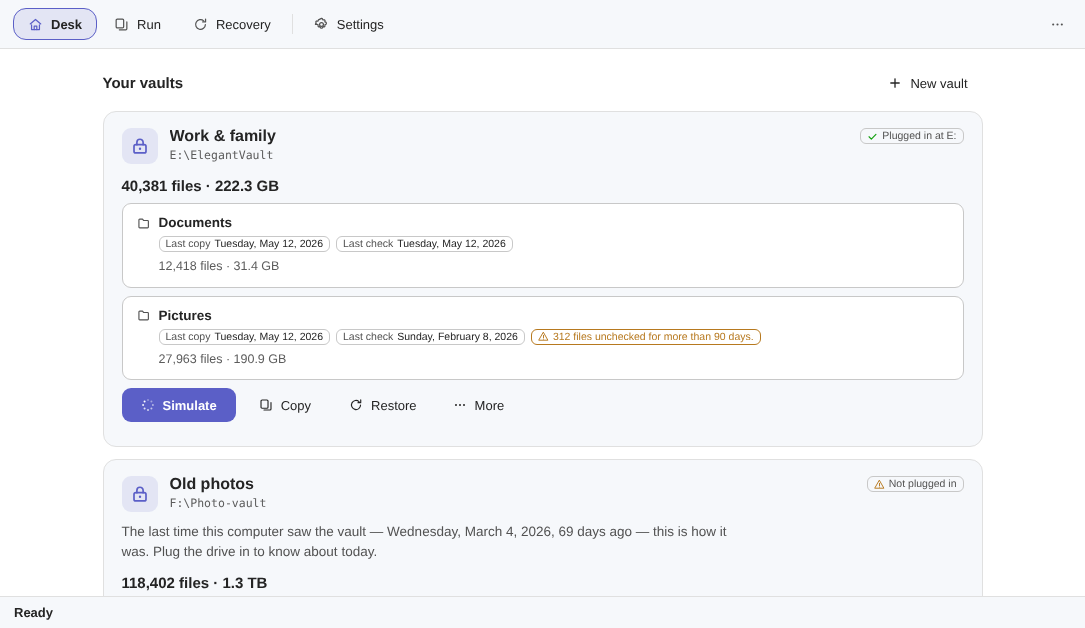
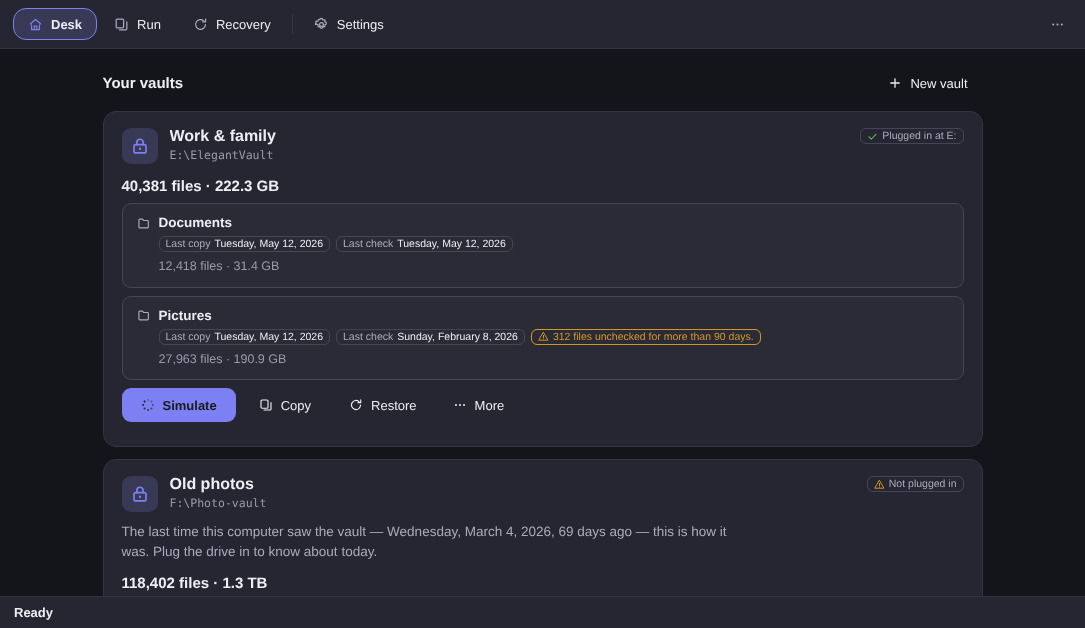
- Plug the drive in and create the vault. Under New vault, give it a name (“Work & family” will do) and pick the destination folder on the external drive.
- Tick what goes in. Add folder…: Documents, Pictures, the office folder. Worth half an hour tidying up first: the vault copies whatever you point it at, mess included.
- Simulate. The Simulate button writes nothing, anywhere: it reads, counts and hands back the plan.
- Read the plan, then approve. Only then Approve and copy: always two gestures, and no button copies before showing the numbers.
- Keep the proof. At the end, one line of five numbers says what happened — and Rehearse the restore brings twenty files back so you can look.
The numbers come before the first byte#
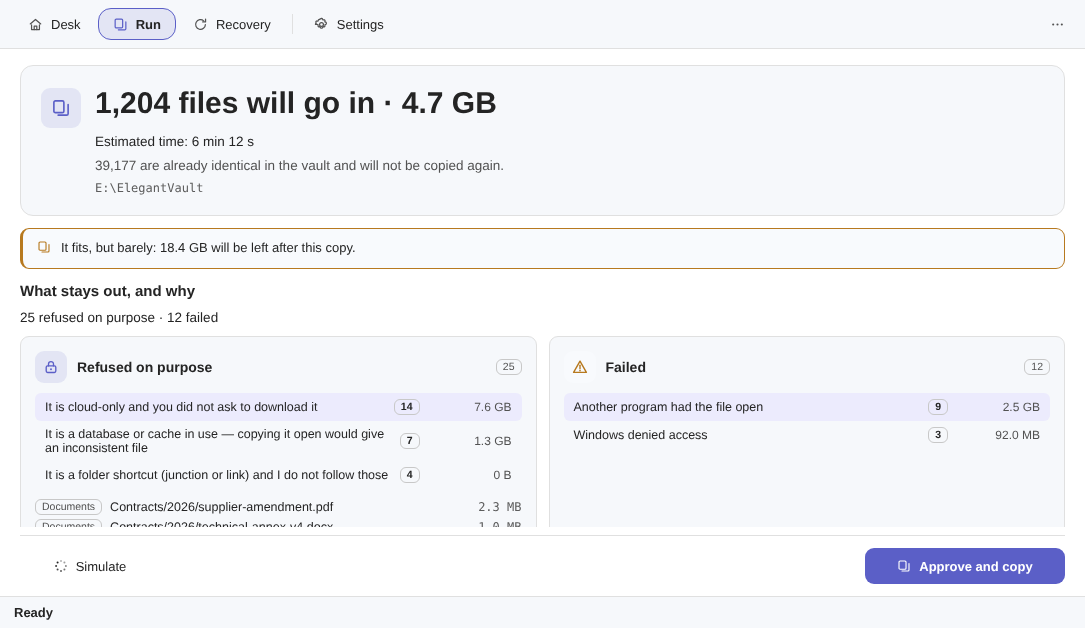
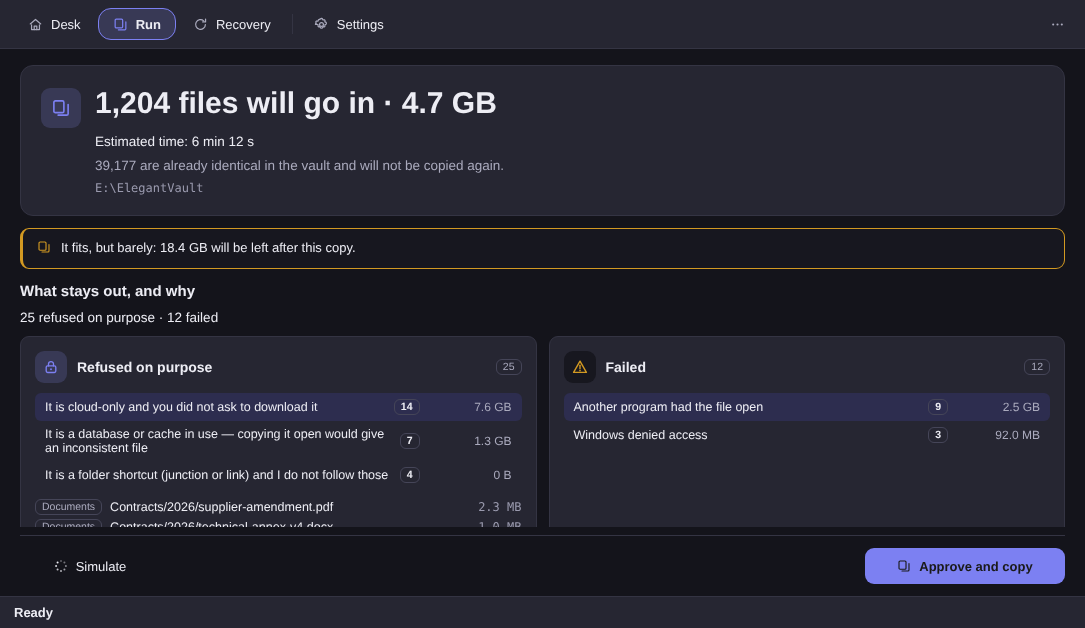
The simulation is an old idea: show the arithmetic before you act. It says “1,204 files will go in · 4.7 GB”, says 39,177 are already identical in the vault, estimates how long that takes on that drive and, when space is tight, warns in amber how much will be left.
About that estimate, one piece of honesty: nobody promises minutes on a shop window, because speed depends on your drive. What a program can do is measure on your machine, before it starts.
What stays out — and why#
Every backup leaves things out; what almost none of them do is say what and why, with a name and a path. Here the list comes in two buckets: “I did not copy it because you did not want me to” and “I could not copy it” are different pieces of news.
It is cloud-only and you did not ask to download it
A OneDrive or Google Drive placeholder: it shows in the folder, but the contents live on a server, and copying it means downloading it whole. It stays out until you ask.
It is a database or cache in use
Copying a file while another program writes to it produces an inconsistent copy that looks fine — the worst kind of file to have in a backup, because it only fails on rescue day.
Another program had the file open
Windows did not hand over the bytes. It becomes a named line in the failed bucket, with the full path, so you can close the program and copy again.
Windows denied access
A missing permission at the source: the failure that goes unnoticed longest, because it dissolves into an error counter nobody opens. Counted, weighed and named.
All three lists save as CSV.
Checking means re-reading the bytes, one by one#
As each file travels to the drive, the program computes a fingerprint (SHA-256) — a number that changes if a single byte changes — and writes it into a plain text list on the drive itself. Checking, later, means re-reading the file in the vault and doing the sum again: if the numbers match, it arrived whole; if not, you learn which file. That is what separates a local file backup from “copied successfully”, and it is the only honest way to verify backup integrity.
At the end of every run, the result is a single line:
1,204 copied · 1,204 of 1,204 checked · 0 mismatches · 25 refused on purpose · 12 failed
That line is indivisible on purpose: the interface is forbidden to show “0 mismatches” without the two counts of what did not go in — without them, the denominator lies.
Checking the whole vault is a gesture you make when you want it: it is what finds silent decay on the drive — and you can stop halfway.
The 40-second rehearsal nobody runs#
The question almost nobody asks in time is “does my backup actually come back?”. The rehearsal answers in about 40 seconds, and it is not a simulation: those are your files, genuinely returning.
It draws twenty with a method: some evenly, some from the largest files, some from the ones longest without a check and some from the longest paths — which is where the problems live. It brings them into a temporary folder, checks each fingerprint against the list and says why each file was drawn. Then it deletes that folder — the only place in the product, outside the Move, where this program deletes anything.
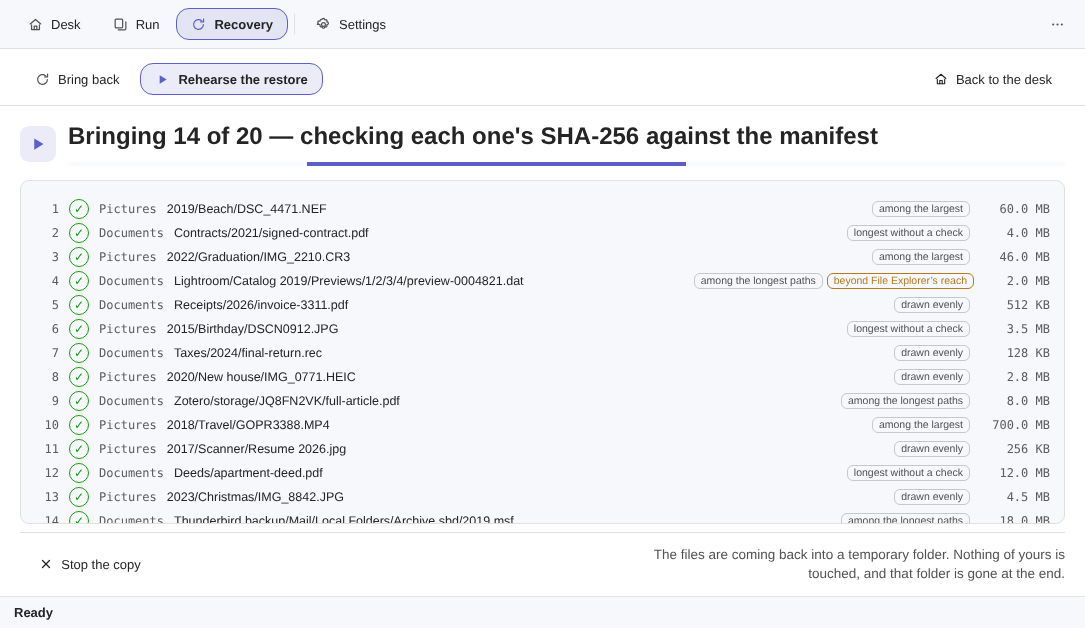
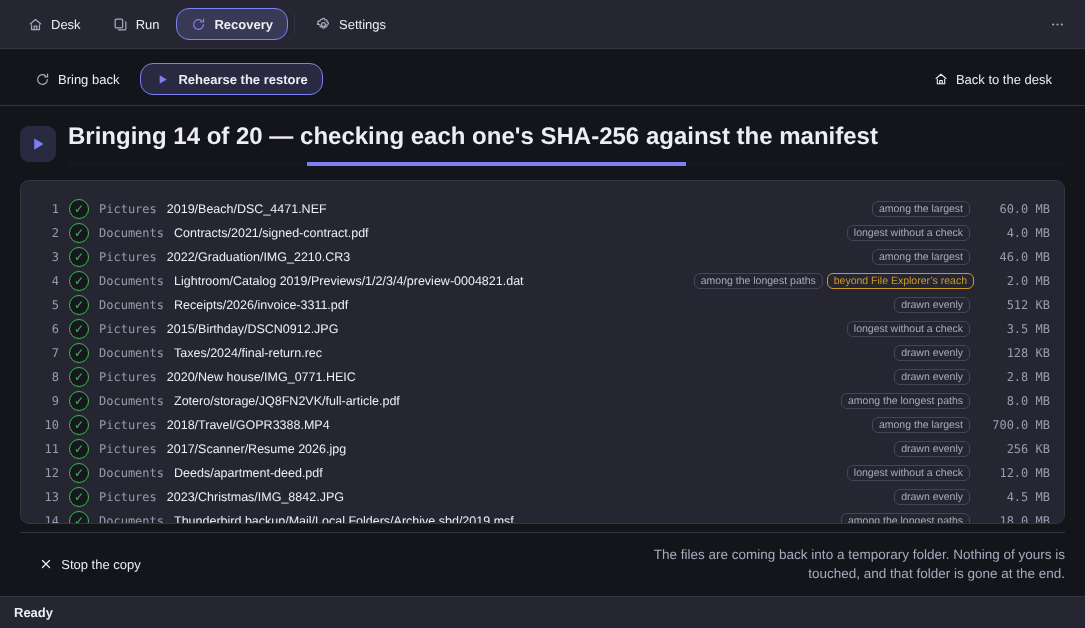
A rehearsal is a sample, not a restore, and the app never pretends otherwise: the real one has its own screen and never overwrites anything — the file comes back beside what is there, with a suffix. Restoring, checking and rehearsing never expire.
At the source, it only reads#
In the folders you chose, this program only reads — worth saying plainly, because it is the difference between a backup tool and a brand new risk. In the mirror, no verb deletes, moves or renames a file of yours. Deleted something at the source? The vault keeps its copy, as a line in a report.
That has a cost: a vault that never deletes grows forever, and renaming a 40 GB folder at the source creates a second 40 GB tree at the destination. Good reason to clear the duplicates out first.
Other limits, said here instead of discovered later: this version keeps no older versions, has no schedule and no automatic copy, the destination is a local drive (not a NAS), and the vault is not encrypted — which is what keeps it readable on any PC. The rest is in the changelog.
If you got here with a drive in your hand, the Elegant Vault page shows the desk, the simulation, the seal and the known limits. There is a 15-day trial, no card and no account, and the licence is one-time: US$ 12.99 at launch, against US$ 24.99 list.