 Elegant
Find similar photos on Windows, not just exact copies
You opened the folder looking for the sunset shot and found five of them. Same evening, same wave, same sun. Not one is an exact copy of another: one is 8.4 MB at 6,000 × 4,000 pixels, one is 91 KB and came back from WhatsApp with a new name, one is a screenshot, and there is the RAW you never opened. Your disk counts five files. Your eyes count one photo. And the tool you used to hunt for repeats sided with the disk.
The same photo, three different files#
Libraries don’t bloat because you imported everything twice. They bloat slowly, and every reason has a name. The picture you sent to the group came back at 1,280 pixels and 91 KB. The fourteen frames of the same wave, because the sea was moving and you weren’t taking chances. The screenshot of a photo you already had. The RAW and the JPG from one shutter press.
One number for scale: the example library in the screenshots below holds 31,406 photos, and 12,408 of them land in some repeat stack — 33.8 GB in play. That’s an example, not an average.
And the real irritation is rarely the disk. It’s the hesitation at the moment of deleting: what if the one I’m about to throw out is the good one?
Why an exact-copy finder misses these#
Almost every duplicate cleaner compares files byte for byte. When a folder was imported twice, the files really are identical and it nails them. If that’s your situation, the route is already written up in Find Duplicate Photos Without Losing a Memory — the easy half of the problem.
The hard half is different. The photo that came back from the messaging app was resized and recompressed: different bytes, different size, different name. To an exact-content comparison, it and the original are two unrelated pictures. Which is exactly why both are still sitting there.
Elegant Photo Cleaner exists for that half. It is a similar photo finder in the literal sense: it compares the images themselves — not the names, not the dates, not the bytes. Two independent measurements have to agree before it calls a pair similar, and that is what finds the same photo again after a shrink, a rotation or a mirror.
No artificial intelligence in here. It’s math, not AI: the same library scanned twice always gives the same answer.
Six reasons the same photo is sitting there twice#
Photos are grouped into stacks, and every stack carries a named kind. The kind isn’t a guess about resemblance — it’s deduced from the evidence that put those photos together.
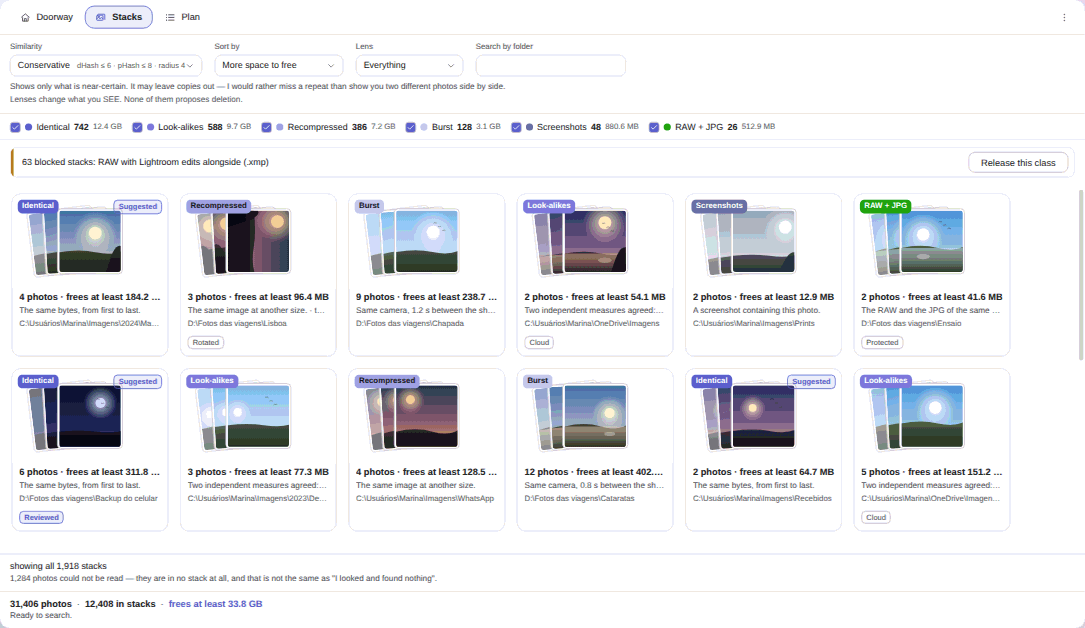
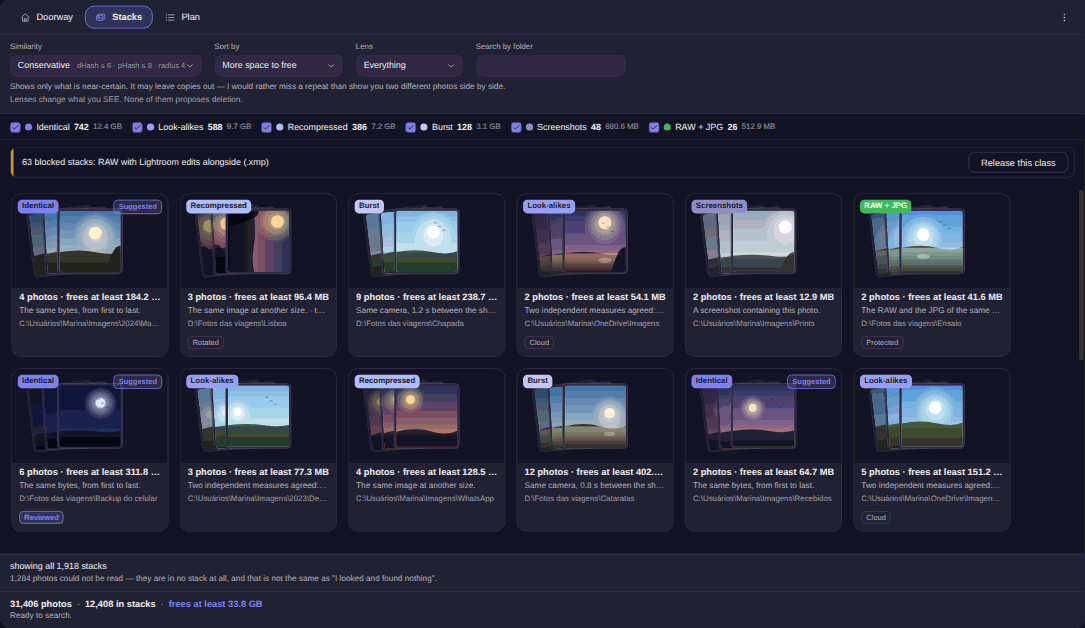
Identical: the same bytes in two folders
The literal copy, under different names and folders. It’s the only kind that gets a Suggested badge — and even that one waits for your click.
Look-alikes: the same picture after a rotation or a resize
The same photo saved smaller, turned 90° or mirrored. All eight rotations and mirrors of the square are covered, and the card says which one was applied.
Recompressed: the same photo at different sizes
The 8 MB original and the 91 KB copy that came back from the messenger. This is where nearly everything you want to delete from WhatsApp photos on your PC lives.
Burst: seven photos from the same second
Frames from the same camera, at most two seconds apart, with the whole stack inside thirty seconds. You don’t find that by looking at pixels — you find it in the record the camera writes inside the file. It’s the kind that lets you remove burst photos without opening fourteen files.
Screenshots: the screenshot of a photo you already own
A screen capture that contains a photo from your library. It only becomes a stack when the uniform frame around the picture can be measured and cropped away.
RAW + JPG: two files, one shutter press
The RAW and the developed file from the same shot, verified pair by pair. Usually the biggest single space saving in the whole library.
The other two kinds are Blurry, which sorts by sharpness inside a stack that already exists, and Videos, which starts switched off.
How to find the look-alikes, in 5 steps#
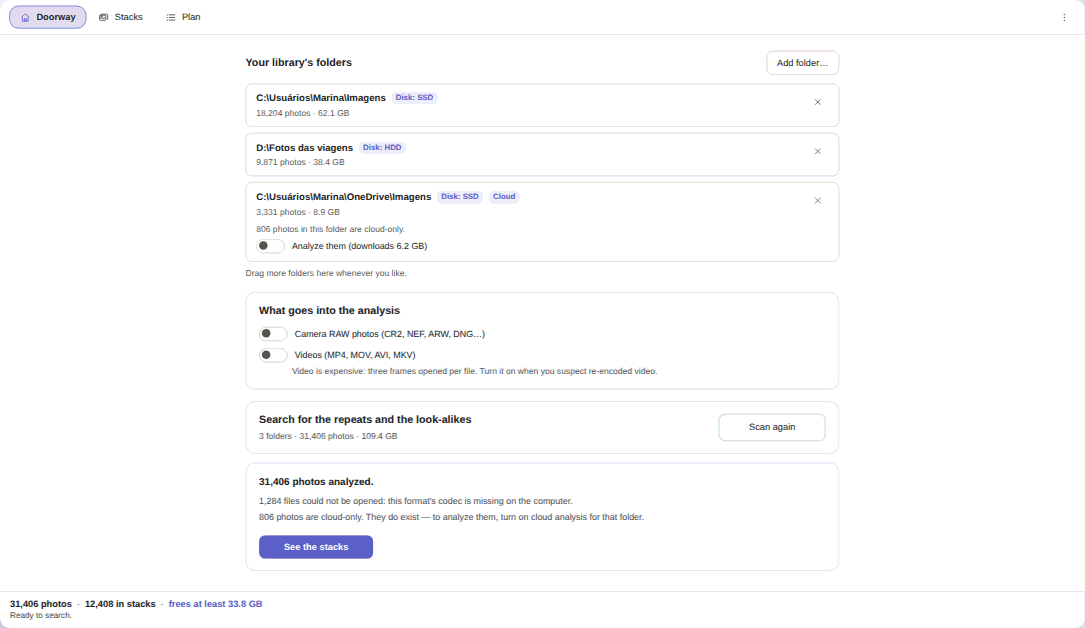

- Point it at your folders, in the Doorway tab. Under Add folder…, pick where the photos actually live: Pictures, the travel drive, the phone backup. Each folder shows its photo count, its size and whether it sits on SSD, HDD or in the cloud. It never scans your computer on its own — a whole-volume root is refused.
- Decide what goes into the analysis. Camera RAW photos and Videos arrive switched off, with the cost of video written beside the switch. A cloud folder gets its own switch, naming the GB that would be downloaded.
- Send it looking. Stacks appear while it is still searching, and cancelling halfway never throws away what was already analysed. At the end it reports how many photos it analysed and how many files could not be opened — because “I found nothing” and “I could not look” are not the same sentence.
- Open See the stacks. The screen starts on the Conservative step, the strictest one; you can move up to Normal or Wide and sort by More space to free. Changing the step changes what you see, it does not rescan.
- Build the plan and approve it class by class. The Plan tab collects everything into about a dozen cards — kind of stack crossed with reason for leaving — instead of thousands of confirmations. Nothing moves before you approve.
Deciding with both photos side by side#
The app doesn’t hand you 78% to interpret. It hands you the sentence: “the same image at another scale”, “the same photo, rotated”. There is no 0-to-100 score anywhere in the product, and its absence is a decision.
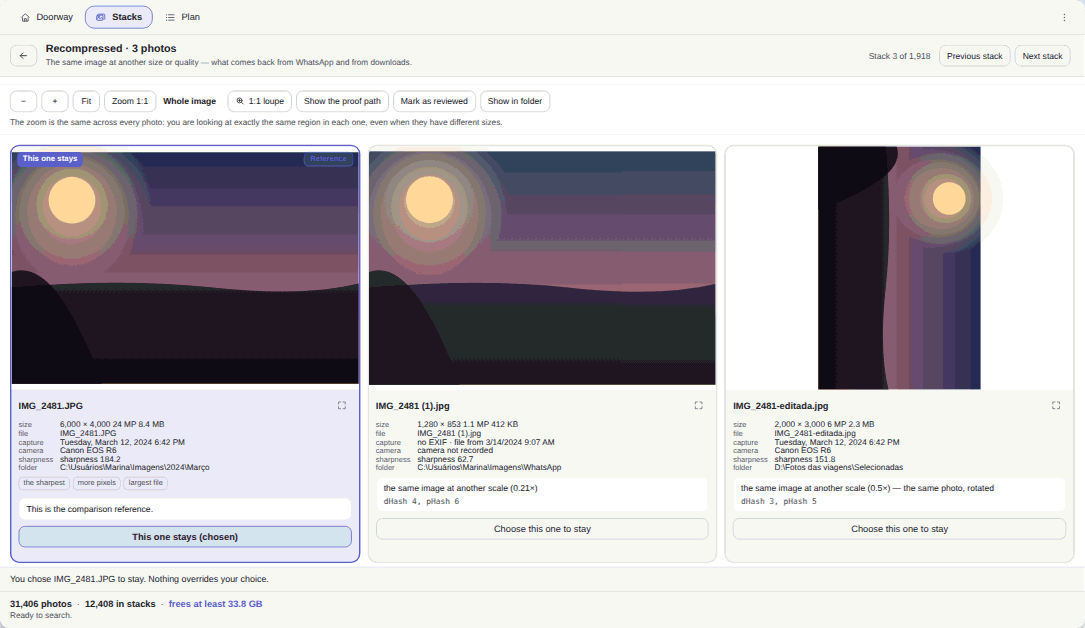
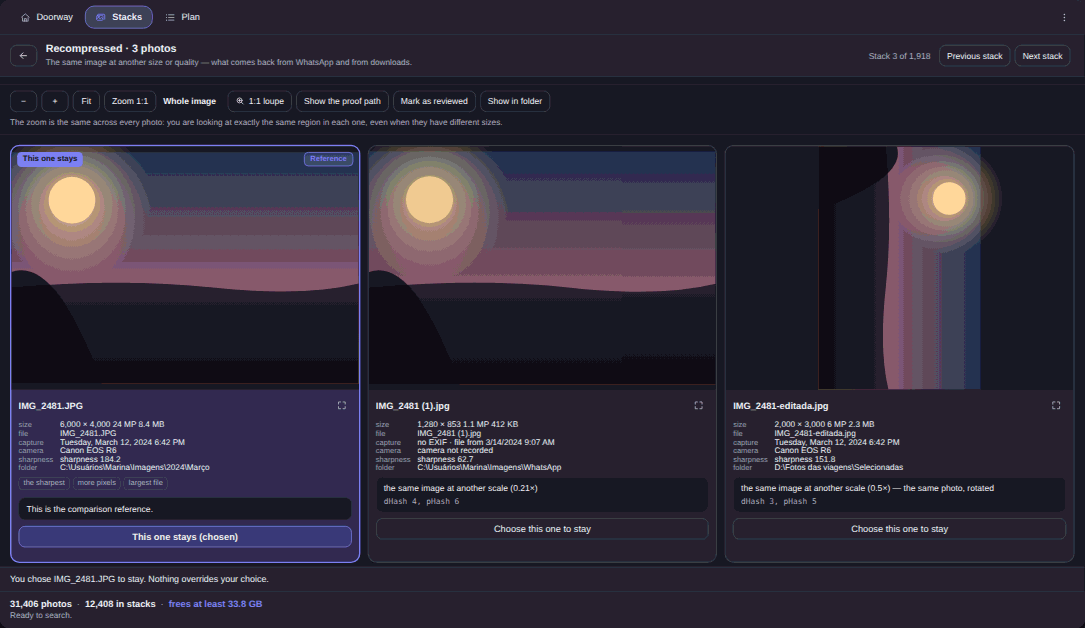
In the comparer the zoom is the same across every photo in the stack. That’s what lets a 6,000 × 4,000 original and a 1,280 × 853 copy show you the same region — the same eyelash, the same horizon line. Under each photo sits its card: dimensions, weight, capture date, camera, measured sharpness and full path. The badges settle it in two seconds: the sharpest, more pixels, largest file.
Clicking Choose this one to stay pins your decision, and nothing in the engine outranks a pin you placed.
Nothing leaves without you — and it goes to the Recycle Bin#
- Nothing is born selected. Only the byte-for-byte copy gets a suggestion badge, and even that one waits for you.
- Every item that leaves carries who stays, why, and the proof. Without a survivor, or without proof linking the two, the item cannot be constructed at all.
- A protected path can never be the victim: system folders, application folders, cloud sync roots, anything outside the folders you chose.
- The only destructive verb is the Windows Recycle Bin. Permanent deletion doesn’t exist in the app, not even as a hidden option.
- After the cleanup it opens the survivor. If the photo that stayed doesn’t open, the whole batch comes back from the Recycle Bin and the screen says so.
- Undo works tomorrow too. Closed the window? The offer is waiting at the next launch, and companion files come back together: the
.MOVof a Live Photo, the.XMPof a RAW. But it depends on the files still being in the Recycle Bin — empty it and no verb brings them back, and the app says that instead of pretending.
Where there is no Recycle Bin — a memory card, a USB stick, a network drive — those items leave the plan first, counted and weighed on screen.
Careful with cloud-synced folders#
Here’s the warning almost nobody gives: deleting a photo inside a synced folder deletes it on your phone too. OneDrive, Google Drive and iCloud do their job — they propagate the deletion. The app treats a sync root as a protected path and asks for an extra acknowledgment before touching anything there.
Photos that only exist online are indexed, not opened: opening one means downloading the whole file, so cloud analysis is enabled folder by folder.
A cleanup you can run again next month#
A cleanup that costs the same effort twice never happens twice. Whatever has been analysed goes into a local catalog, so opening the app tomorrow paints yesterday’s stacks straight back.
Worth saying what it can’t reach: a real crop, a cut panorama, a collage, a photo taken of a screen and an arbitrary 7° tilt are out of range for image comparison. And very flat photos — sky, a plain wall, a scanned document — are the hard case: on the Conservative step it finds about 80% of those pairs, and 100% from Normal upwards.
No photo and no file name leaves your machine. It’s US$ 9.99 at launch price (list US$ 12.99), a one-time purchase, no subscription, with a 15-day trial on your PC, no card and no account.
If your real squeeze is space rather than mess, Drive C full: free up space without deleting anything is the broader way to free up space on Windows, photos included. And the Elegant Photo Cleaner changelog shows what changed in each version.
You don’t have to choose between a clean library and the photo you have no second copy of. You have to see both side by side, with the card for each — and decide.