 Elegant
Reduce PDF file size on your PC — no upload
You scanned the whole contract, checked it page by page, wrote the email, attached the file and hit send. The bounce came back in two seconds: attachment exceeds the maximum size. The PDF is 45 MB, the limit is 25, and the deadline is today.
Nobody looks up how to reduce PDF file size out of curiosity. That search has a clock attached to it: someone holding a file that is too big and facing a place that refuses to take it. This post solves that in four steps, on your own computer, and tells you exactly what you are trading for each megabyte.
The attachment is 45 MB and the limit is 25#
A PDF too large to email is only the most famous version of the wall. The others look the same:
- the client portal that rejects anything over 10 MB without saying why;
- the court or agency filing system that accepts 5 MB per document and not a byte more;
- the mailbox at the other end that swallows the message and bounces it back two days later, once you already assumed it had gone through.
The cruel part is that the file is already on your disk. Your scanner made it, your computer is holding it, and the only thing missing is a program willing to treat it as yours.
Why your PDF got so big#
A PDF born in a word processor is light by nature: a 30-page report exported from Word usually weighs a few hundred KB. It stores letters and drawing instructions, not paper.
A PDF born in a scanner is a different animal. Each page is a photograph of the sheet, kept at high resolution so the small print stays legible. Multiply that by 14 pages and the file clears 40 MB without trying. The same goes for paperwork photographed on a phone: four pictures of receipts walk in at 5 MB each.
Hence the rule that holds for any app you pick: the weight is in the images. Compressing a PDF means recompressing the images inside it. That is why the job of shrinking a scanned PDF is worth doing, and why a text-only file has nothing to give.
If your scan is not only heavy but also the one where Ctrl+F finds nothing, that is a different problem with its own fix — you can make a scanned PDF searchable without leaving your PC.
The easy route asks for your file first#
Search for “compress pdf” and the first page of results is a queue of free websites. They all work the same way: a big box in the middle of the screen saying drop your file here.
What that box means is that, before anything happens at all, a complete copy of your contract, your medical results or your payslip travels across the internet and gets written to somebody else’s disk. The service may be serious, may promise to delete it within the hour, and may keep that promise — but the promise is theirs and the paperwork is yours. It is the same toll that shows up when you merge two PDFs, and nobody is being wicked about it: it is structural. For the site to work on your file, it has to receive your file.
Then comes the second half of the bill: the watermark that was not in the preview, the “you have used your 2 free operations today”, and the monthly subscription charged for a two-minute job.
Reduce the PDF on your own PC, in 4 steps#
There is a third option that quietly left the public imagination over the last decade: an installed program that opens the file already sitting on your disk and writes the result next to it. That is what Elegant Paper does — no upload, no account, no daily quota.
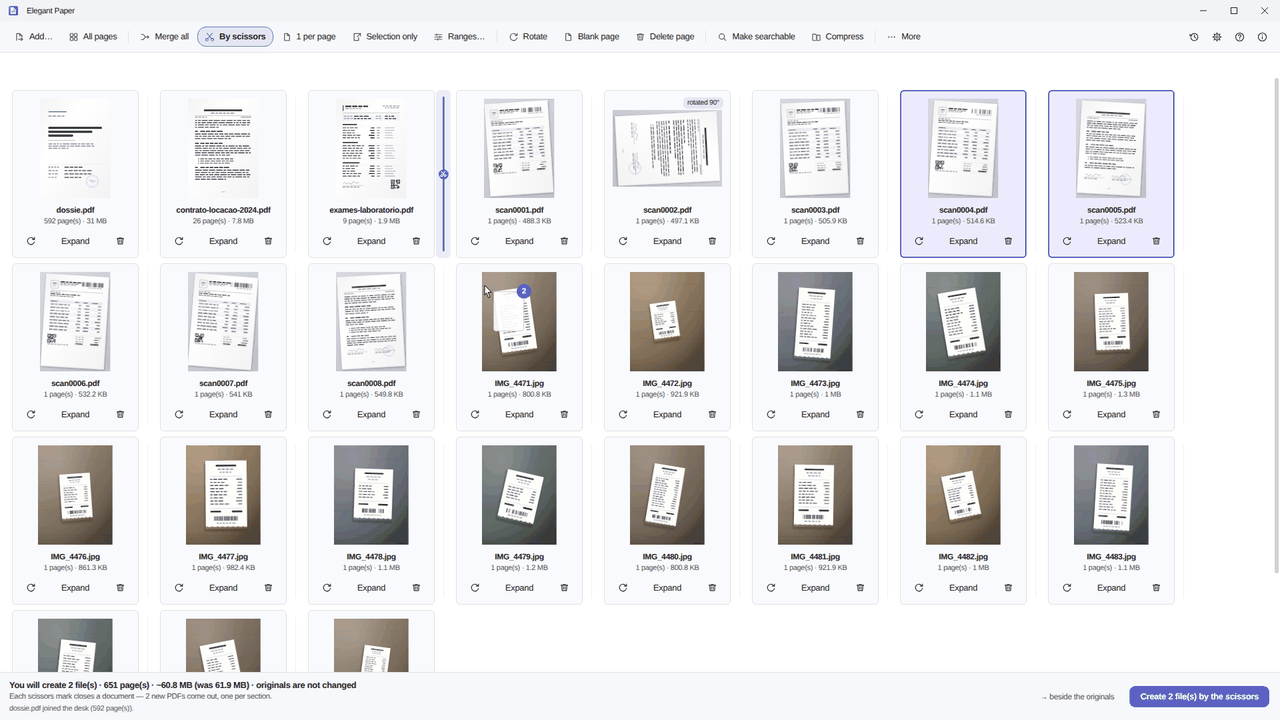
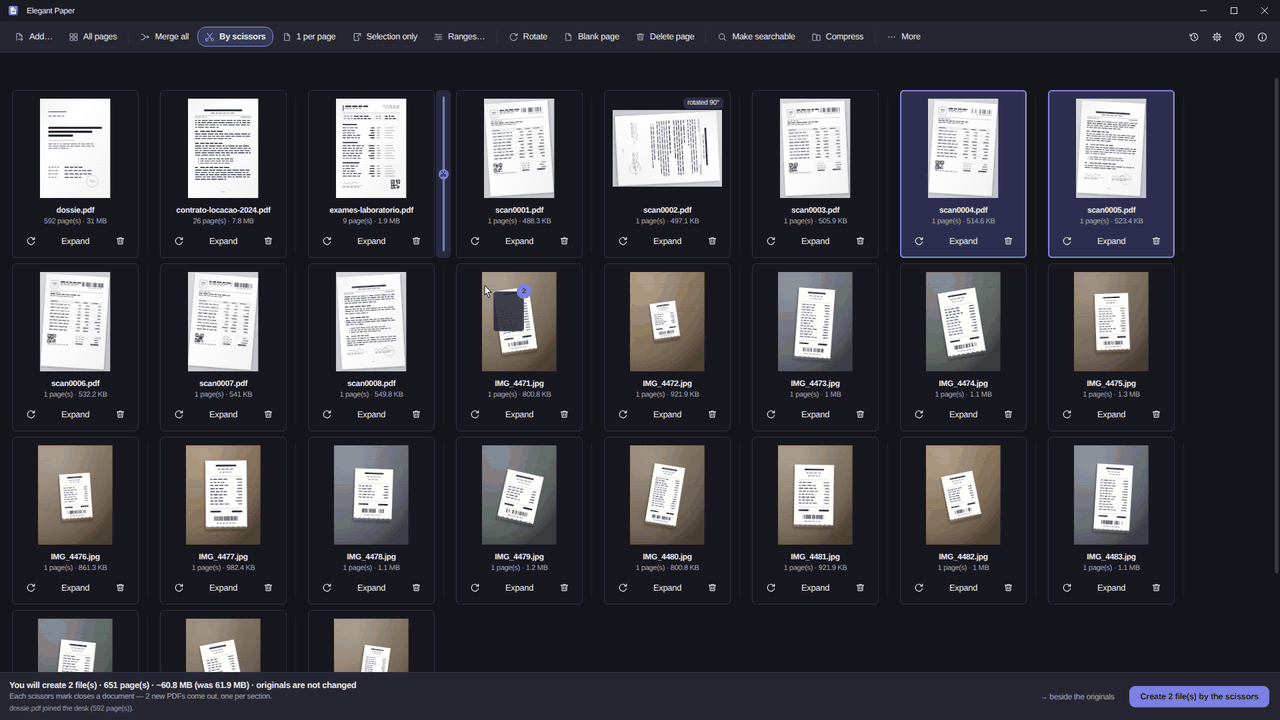
- Put the file on the desk. Drag the PDF onto the window, or use Add…. Every file becomes a card, and Expand opens that document’s page grid, one thumbnail per sheet.
- Drop what does not need to travel. The blank back of a sheet, the repeated cover page, the ID copy that got scanned twice. Delete page handles it and Rotate straightens what came in sideways. This is the one saving that costs no quality at all: fewer pages, smaller file.
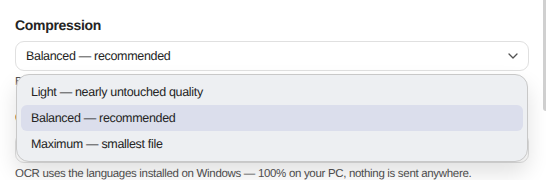
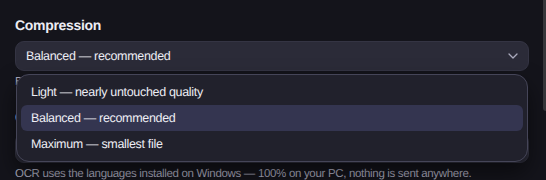
- Pick the compression level. Light, Balanced or Maximum — each one states, on its own line, what it does to quality. Compression is not a step in the middle: it is how the file comes out, applied at the end, along with the password and the metadata cleaning if you asked for them.
- Save. The button reads Save 1 file, and that is the only moment anything is written to disk. When it finishes, the app states what actually happened: “Compressed: 45.8 MB → 18 MB”.
That last point matters: the number worth having is not the estimate on a sales page, it is the result measured on the file that just came into existence.
Which of the three levels to pick#
There is no “best level”. There is the right level for whatever happens to the document next.
Light (nearly untouched quality)
For anything that will still be printed, zoomed into or read closely: a drawing, a report with photographs, a contract with small stamps, an invoice whose barcode somebody has to scan. This is the step you take when you want to shrink a PDF without losing quality you would actually notice.
Balanced (recommended)
The default, and the right call for almost every email: the document stays comfortable on screen and the file drops enough to clear most limits. If you would rather not think about it, start here.
Maximum (smallest file)
For a hard ceiling and an on-screen destination — the 5 MB portal, the attachment that has to fit today. The usual rule applies: open the file it produced and look at one page before you send it. The original is still there, so trying costs nothing.
When compressing won’t help (and the app says so)#
This is the part almost no website mentions. Compression has a limit, and the limit depends on what is inside the file:
- A text-only PDF barely shrinks. That report exported from Word is already light because it holds no images; there is nothing to recompress. In that case Elegant Paper says the PDF is already compact and creates nothing — instead of handing you a worse file just to look busy.
- Compressing twice does not halve it again. If the file has already been squeezed once, the second pass returns little and charges a lot in quality.
- An app that always hands back a smaller file is always making something worse. When there is nothing to gain, the honest answer is that there is nothing to gain.
Big file, little to squeeze? Stop pressing and change strategy.
Still too big? Split instead of squeezing#
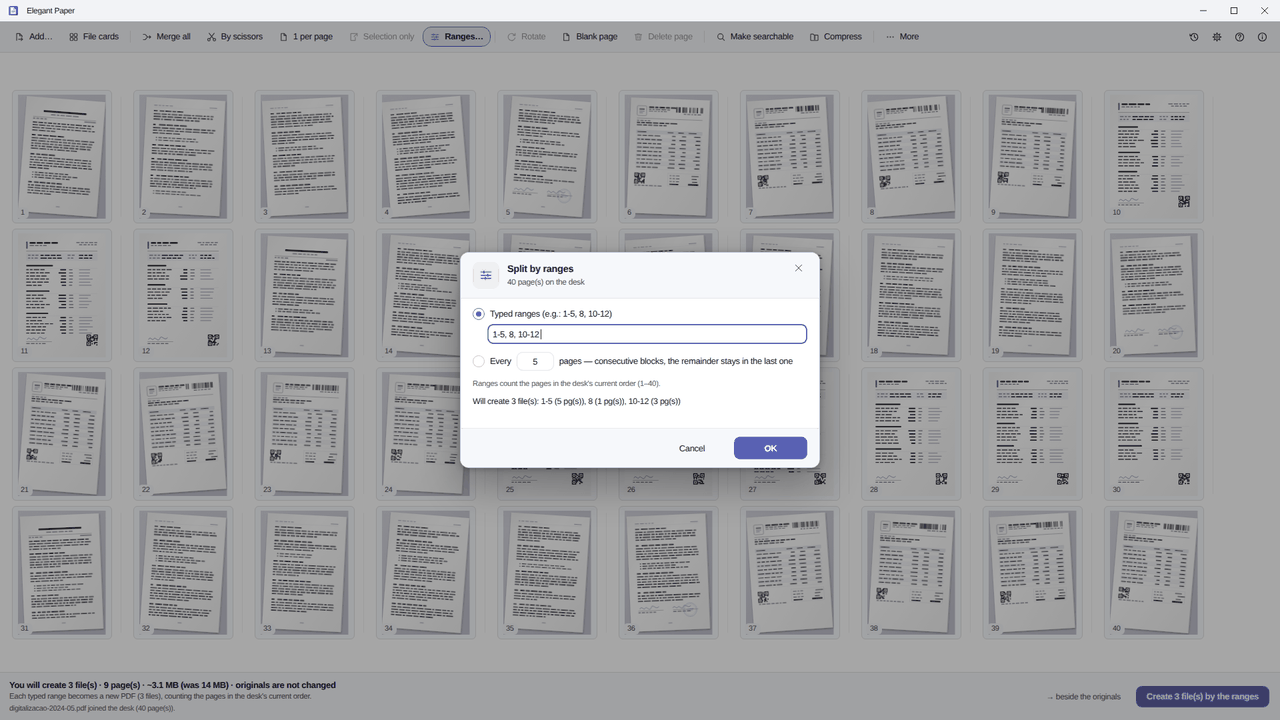
Three emails of 15 MB get through where one of 45 does not. And splitting costs no quality at all: it recompresses nothing, it only separates pages. There are two ways to do it without counting sheets by hand:
- By ranges. Type 1-5, 8, 10- and the preview answers as you type, telling you how many files will come out. The other option is “every N pages”, with the remainder in the last one.
- By scissors. One click between two cards drives the mark in, and each mark closes a document — the natural move when the giant PDF is really five documents the scanner glued together.
The original stays where it is#
Worth spelling out, because it is the difference between an experiment and a fright: the output is always a new file, next to the old one. A repeated name gets a suffix; nothing is ever overwritten. And a 12-second undo toast sends what was generated to the Recycle Bin — never your original.
That changes how you work. Generate the Balanced version, open it, dislike it, generate Maximum and compare the two. The 45 MB contract stays untouched the whole time. None of it asks for the internet either, which is what “compress a PDF offline” is supposed to mean — take the PC off the network and run the whole job to check. What changed in each release is in the Elegant Paper changelog.
If you got here because of an attachment that would not fit, the Elegant Paper page shows the desk, the three levels and the known limits — it does not edit the text inside a PDF, does not fill in forms and does not digitally sign. There is a 15-day trial on your PC, no card and no account, and the licence is a one-time purchase: US$ 9.99 at the launch price, against a US$ 19.99 list price.