 Elegant
Password-protect a PDF without Acrobat, on your PC
The loan officer asked for the signed contract, two pay stubs and a scan of your ID, and closed with the usual line: “just email it over”. You look at the finished attachment and hesitate. That file holds your full legal name, your salary and your signature — and a sent email has no recall button. The recipient forwards it, the forward gets forwarded, and your paperwork settles into inboxes you will never see.
Nobody searches for how to password protect a PDF without Acrobat out of curiosity. That search is born the night before a send that makes your stomach tighten: the lease, the medical record only your doctor should read, the tax return your accountant needs by Friday. The good answer has lived inside the PDF format itself for decades, and you can apply it on your own computer in about a minute, with the file never visiting a website on the way. This post walks that road — and the road back, which is removing the password once it has done its job.
The contract, the ID scan, and “just email it”#
The scene changes costume every week. HR wants proof of address. The school asks for the scanned vaccination card. The lawyer sends a draft carrying both parties’ personal details. The accountant receives, every spring, a batch of returns and pay statements that would do real damage in the wrong inbox.
The problem is not the person on the other end; it is the route and the warehouse. A message crosses servers that are not yours, gets written into backups nobody audits, and survives for years in mailboxes guarded by passwords recycled since 2017. An open attachment means exactly this: anyone who ever gets into that account reads your whole contract.
A password on the file itself attacks that precise point. If the message leaks, the attachment stays shut — whoever found the email did not find the document.
Uploading a file to protect it means handing it over first#
Search for how to add a password to a PDF and the first page of results is a row of free websites, all built around the same box in the middle of the screen: drag your file here. Read that box slowly. To gain a password, the document that was not supposed to circulate must first travel across the internet and be written, wide open, onto the server of someone whose name you could not recall tomorrow.
The service may be serious, promise to delete everything within an hour, and keep the promise. But look at the shape of the transaction: handing your entire document to a stranger, in exchange for privacy. It is the same structural toll you pay to merge two PDFs on a website — for the site to work on your file, the site has to receive your file. On a mundane errand, that is an annoyance. On the errand called “protect my ID scan”, it is a contradiction in terms.
Windows on its own will not rescue you: there is no “protect with password” in the right-click menu, and the question sits unanswered even on Microsoft’s own Q&A forum. If your document is still a .docx of yours, Word can export a PDF with a password baked in — that works, and it is fair to say so. The gap is everything else: the PDF that already exists, the scan, the file that arrived finished from someone else.
What a PDF password actually does#
It is worth understanding what you are applying, because it changes how much you can trust the result. A PDF password is not an app gimmick, and not a padlock that only the program that set it can recognize. It is encryption belonging to the format itself — in Elegant Paper, AES-256, applied to the copy it creates. The content genuinely comes out scrambled, and the password is the key that unscrambles it.
Two practical consequences follow. First: the recipient needs no special software. Adobe Reader, the browser, the phone’s PDF viewer — every one of them recognizes the standard and asks for the password before showing the first page. Second: there is no back door. Without the password, the file tells nothing to anyone: not to a snoop, and not to you either, if you forget it. That second consequence returns later in this post, because it is the part the free websites rarely mention.
Add the password on your own PC, in 4 steps#
In Elegant Paper, protecting with a password is one of the jobs on the start screen, not a tool buried three menus deep. The whole flow:
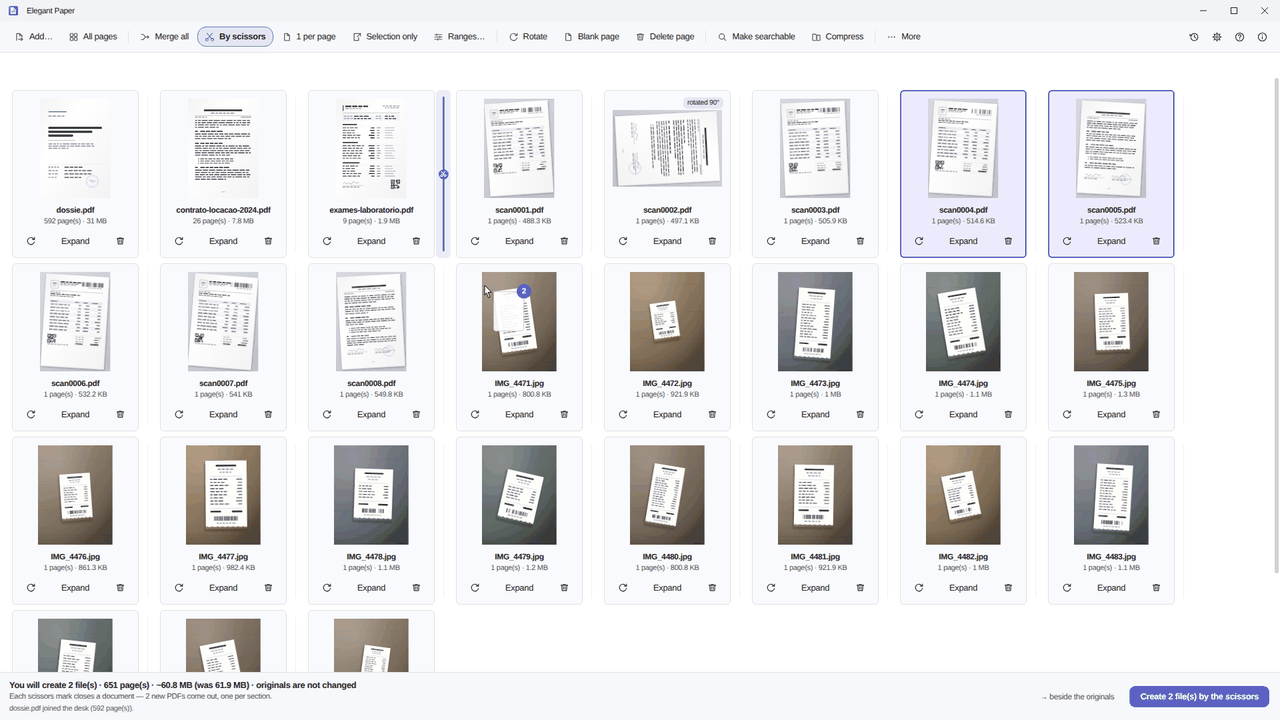
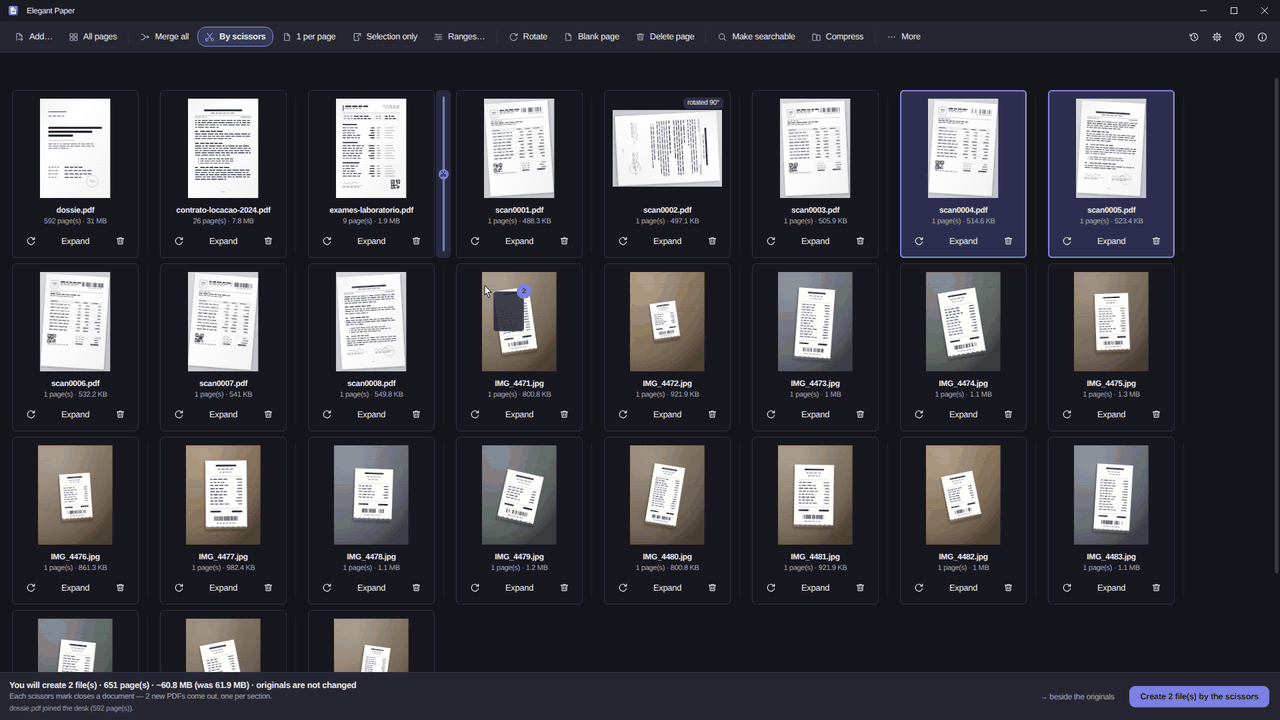
- Put the document on the desk. Drag the PDF onto the window or use Add…. It becomes a card with its name, page count and weight; Expand opens the grid of thumbnails, sheet by sheet.
- Get it into the shape it should leave in. While you are here: Rotate straightens the sideways page, Delete page drops the blank back side. The password will apply to the finished file — so this is the moment to finish it.
- Mark Protect with password and type the password. It joins the list of what you asked for, next to anything else going into the same output: a stamp, page numbers, compression. Nothing has been written yet, and the dialog itself points out that the original will stay unprotected.
- Save. The button says Save 1 file, and that click is the only moment anything is born on disk: a new, encrypted copy, sitting next to the original.
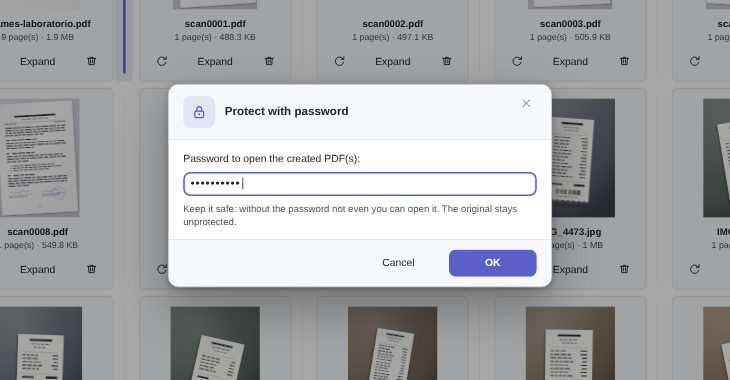
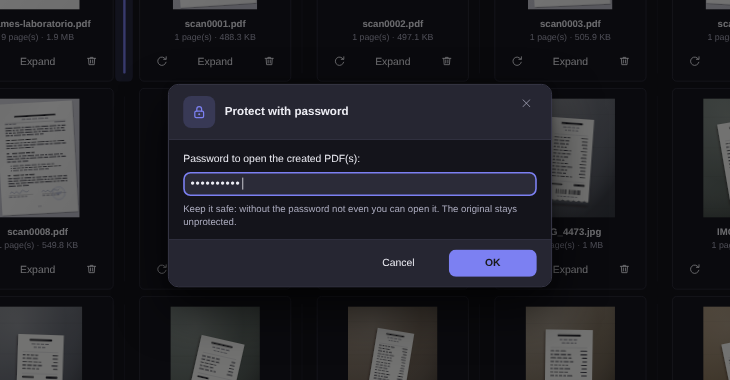
One half remains that no dialog can solve: getting the password to the recipient. The rule is short — use a different channel. If the PDF goes by email, the password goes by phone or text message. A password in the same email as the attachment is a key taped to the door.
Removing the password once it has done its job#
A good password enters at the right moment and exits afterwards. The contract traveled protected, the deal closed, and the version headed for your archive does not need to demand a password at every opening — three years from now, you will not remember what it was anyway.
The road back is short: put the protected PDF on the desk (the app asks for the password to open it), choose Remove password, and save. Out comes a new, open copy, and the protected one stays where it was. The condition is built into the gesture: you have to know the password. Elegant Paper does not crack, guess or “recover” PDF passwords — not yours, not anyone else’s. An encrypted file without its key is exactly what it promises to be: shut.
What your PDF says about you, password or not#
Every PDF carries a record nobody sees while reading: the metadata. Author, the software that produced the file, creation and modification dates — in a document that circulates between offices, that record gives away more than it should, starting with the user name of the machine it came from.
Clean metadata strips that record from the generated copy: author, software and history all go. And since password, weight and metadata are all decisions about how the file comes out, you can ask for all three at once — a PDF that is protected, light and quiet, in a single save. If weight is today’s actual problem, it has a post of its own.
The original stays where it is, no password#
Nothing in this post touches your file. The output is always a new document next to the old one; a repeated name gets a suffix, never an overwrite. The 12-second notice with Undo sends the generated file to the Recycle Bin — the original, never.
In practice: the unprotected version stays on your disk, in your backup, under the same custody as always, and the protected copy is the one that travels. Regret the password you picked? Generate another copy in thirty seconds, because the starting point never went anywhere.
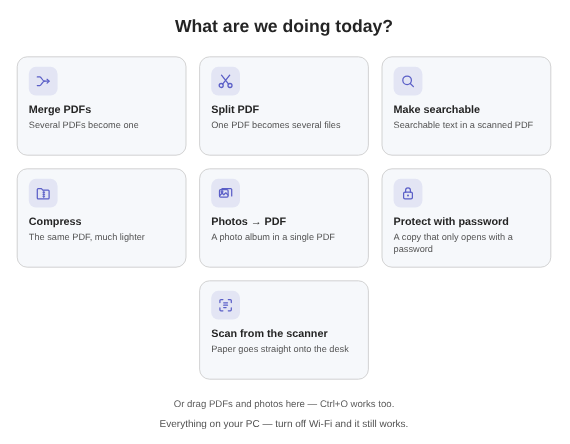
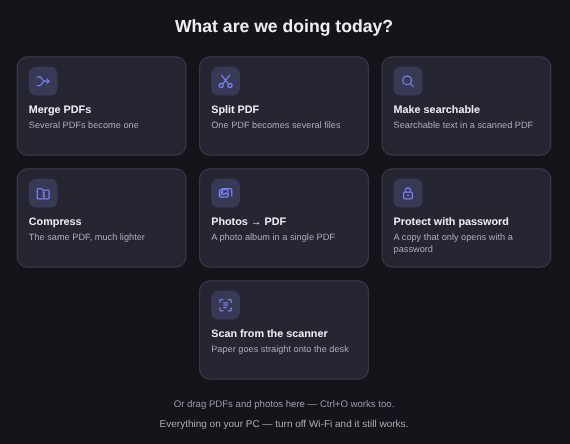
The next time a document has to leave the house, the launcher opens with the house question, and protecting with a password is one of the jobs on the first screen. What changed in each version of the app is on record in the Elegant Paper changelog.
What the password is not#
This section is worth more than the feature, because it prevents the expensive mistake. Three limits, in writing:
- A password is not a digital signature. Encryption shuts the content away from anyone without the key; it does not prove who wrote the document, does not replace a certificate (eIDAS, ICP-Brasil) and carries no legal weight as a signature. If a court or a client requires a certificate-based signature, that is a different instrument — and Elegant Paper does not offer it, which the product page says plainly in its known-limits section.
- A weak password is weak protection. AES-256 scrambles the content exactly as well as your password allows. “1234” falls in seconds to any guessing program; a long phrase you could dictate over the phone does not. The door is only as strong as the key.
- The password controls the door, not the guest. Whoever you gave the password to opens the document and, once inside, can print it, photograph it, forward it on. The password protects the route and the wrong inboxes; against the person you handed the key to, no feature protects.
Within those limits, it is the right tool for this week’s errand: making sensitive paperwork travel shut, without passing through any website. The Elegant Paper page shows the desk, the jobs and the known limits, with no fine print. The trial runs 15 days on your PC, no card and no account, and the license is a one-time purchase: US$ 9.99 at the launch price, against US$ 19.99 list.