 Elegant
RAW + JPG pairs: which one to delete, and how
Nine hundred frames came off the card and 1,800 files landed on the drive. Your camera has been set to RAW+JPEG since the day you bought it, so every press of the shutter now lives twice: the .CR2 you would open if you ever sat down to develop it, and the .JPG that came out finished and is the one you actually sent to the family chat. Neither file is a problem on its own. Three years of them are half your drive.
One shutter click, two files forever#
The arithmetic is uncomfortable. On the screens in this post the same capture shows up as an 8.4 MB JPG and a 31.7 MB RAW. That is close to four to one. On a 900-frame trip the RAW side alone clears 28 GB, and most of it belongs to photos you will never develop: the road sign, the menu, the fourteen frames of the same wave.
Nobody deletes that on impulse, and the hesitation is honest rather than lazy. Throwing out a RAW feels like binning the negative, and the JPG has decisions baked into it that you cannot undo. So the folder stays. It has been staying for three years.
It helps to separate the real fear from the slogan. Ask this question anywhere photographers gather and you get one sentence back: keep the RAW, always, you can re-export the JPG. That advice is right for the shoot you might still deliver. It is wrong for a birthday in 2019 whose JPG was printed, posted and seen by everyone, while the RAW beside it has never once been opened.
Who stays: a rule in three lines#
Decide this in your head before you open any software, and decide it per folder or per year rather than for the whole library at once.
Keep the RAW if…
The photo could still be developed again. Weddings, paid shoots, landscapes you want to print large, anything with a blown sky or a crushed shadow that the camera already resolved its own way. Here the RAW is the original and the JPG is a preview you can rebuild in half a minute.
Keep the JPG if…
The photo has already done its job and the RAW was never touched. Vacation shots from 2019, a photo of a document, a shot of a serial number, the burst where you long ago picked the keeper. If the JPG is the version that circulated, holding 31 MB of raw material for a development session that is not going to happen means storing an intention, not a picture.
Keep both if…
You genuinely do not know yet. That is a legitimate answer and the cheapest one available: leave the pair alone, note the folder, come back when the job closes. The worst cull is the one done in a hurry the week before you need the file.
What almost never works is one rule for the whole library.
There is also a practical reason this cleanup never happens: the software your photos live in usually will not let it. A photo catalog stacks the pair and shows you a single item, because as far as it is concerned the RAW and the JPG are the same photograph. As a picture, they are. As storage, they are two files, and storage is what ran out. So the next step is looking at the pair as files, folder by folder, instead of sorting an Explorer window by extension and hoping.
How it knows it’s the same click#
Elegant Photo Cleaner groups photos into stacks, and one kind of stack is called exactly RAW + JPG: the RAW and the developed file from the same shutter press, verified pair by pair. Strong proof is the companion set, same folder and same base name. Weak proof is the same camera with capture times touching, and it counts for less precisely because file names lie. An export renames, a phone backup rewrites, and suddenly DSC_0412.NEF and final-web.jpg are the same click without looking like it.
The relation is checked pair by pair and never chained. Without that tightening, three neighboring pairs turn into one twelve-file stack that nobody reviews honestly.
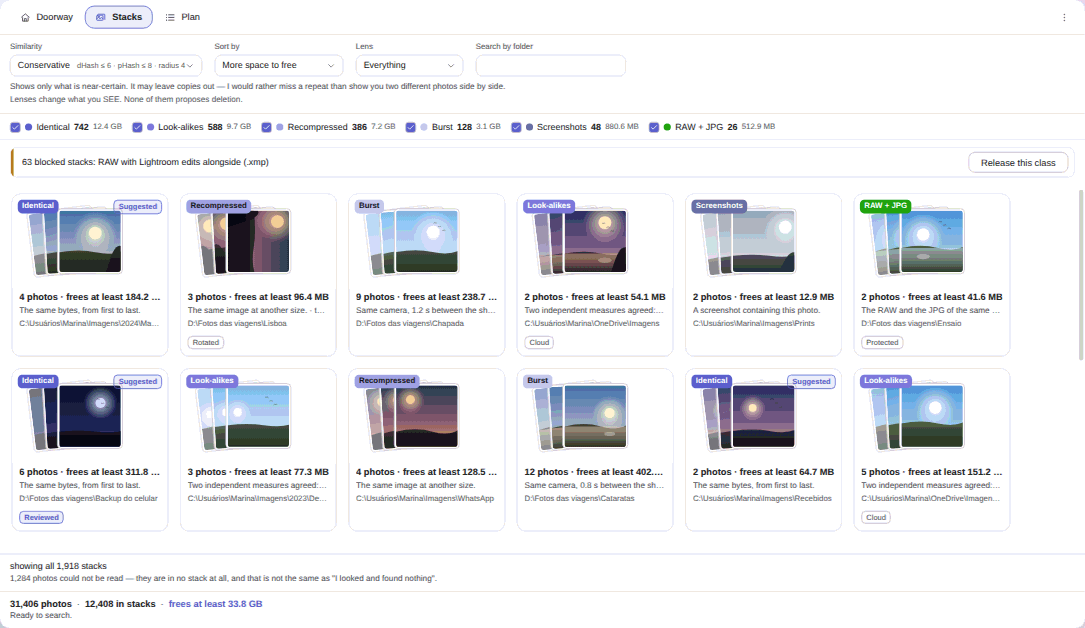
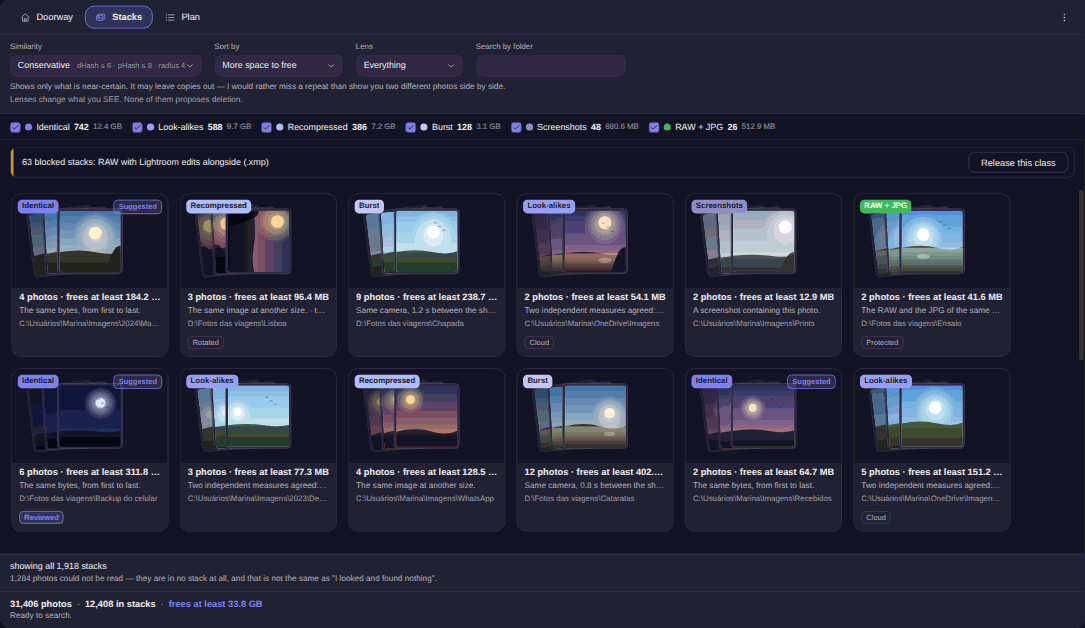
Look at what the sample screen actually reports: the RAW + JPG slice is 26 stacks and 512.9 MB. Modest. And the reason sits right above it, in a banner: 63 blocked stacks: RAW with Lightroom edits alongside (.xmp). More pairs were held back out of caution than were offered up. That is the call I wish I had made for myself three drives ago.
Turn on RAW analysis and scan, in 5 steps#
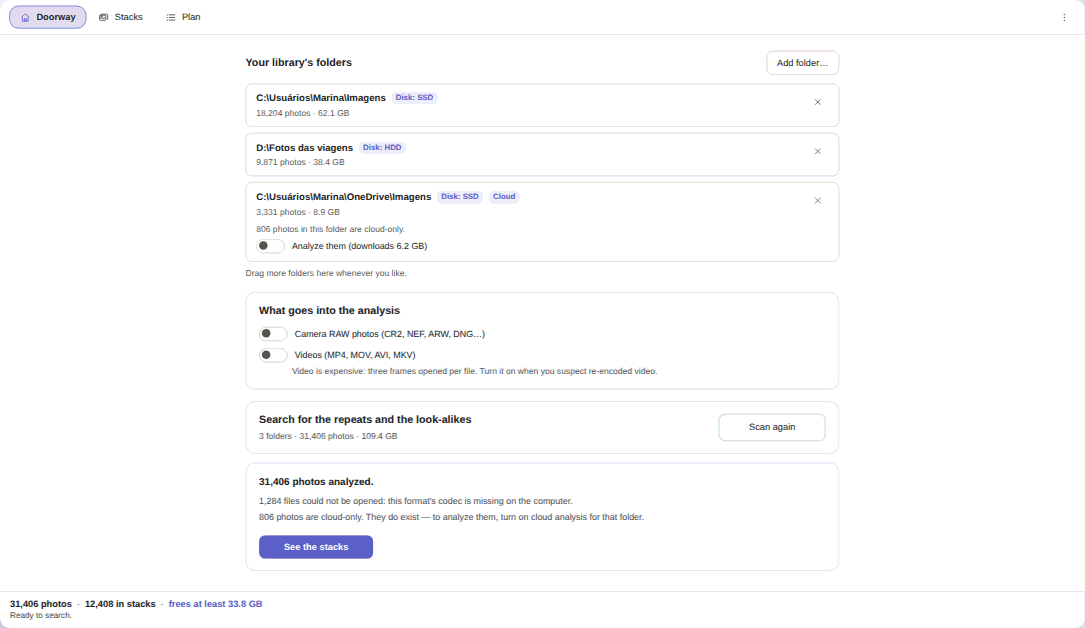
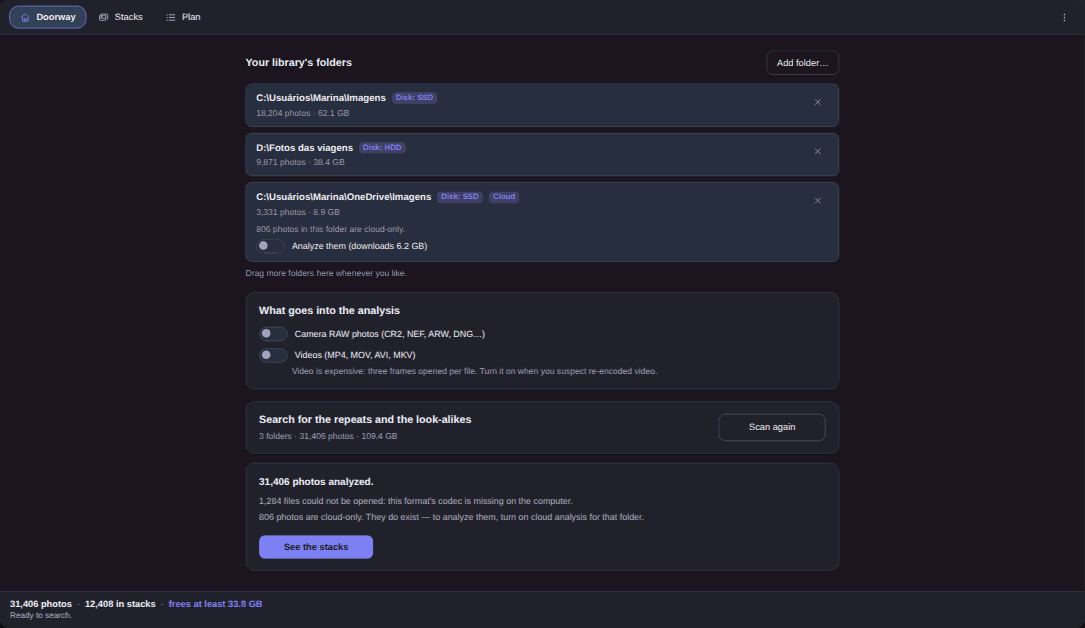
- Point it at your folders, in the Doorway tab. Under Add folder…, pick where the photos really live: the travel drive, the folder for that year, the card backup. Each folder reports its photo count, its size, and whether it sits on SSD, HDD or in the cloud. A whole-volume root is refused, and it never scans your computer on its own.
- Turn on Camera RAW photos (CR2, NEF, ARW, DNG…). The switch arrives off, and that is the number one reason someone scans and sees no RAW at all. If your format depends on a Windows codec extension that is not installed, the app names the extension instead of pretending the folder was empty.
- Send it looking. When the scan ends it states what it did and what it could not do: 31,406 photos analyzed, 1,284 files could not be opened, 806 photos are cloud-only. “I found nothing” and “I could not look” are different sentences, and it refuses to swap one for the other.
- Open See the stacks and narrow to RAW + JPG. The tick boxes along the top filter by kind, so clear the others and sort by More space to free. Changing the similarity step changes what you see, it does not rescan.
- Build the plan and approve it class by class. The Plan tab collects everything into about a dozen cards, kind of stack crossed with reason for leaving, rather than thousands of individual confirmations. Nothing moves before you approve it.
The file card shows what a thumbnail can’t#
In a RAW + JPG stack the thumbnail is useless. Both files are the same picture. What decides is written underneath.
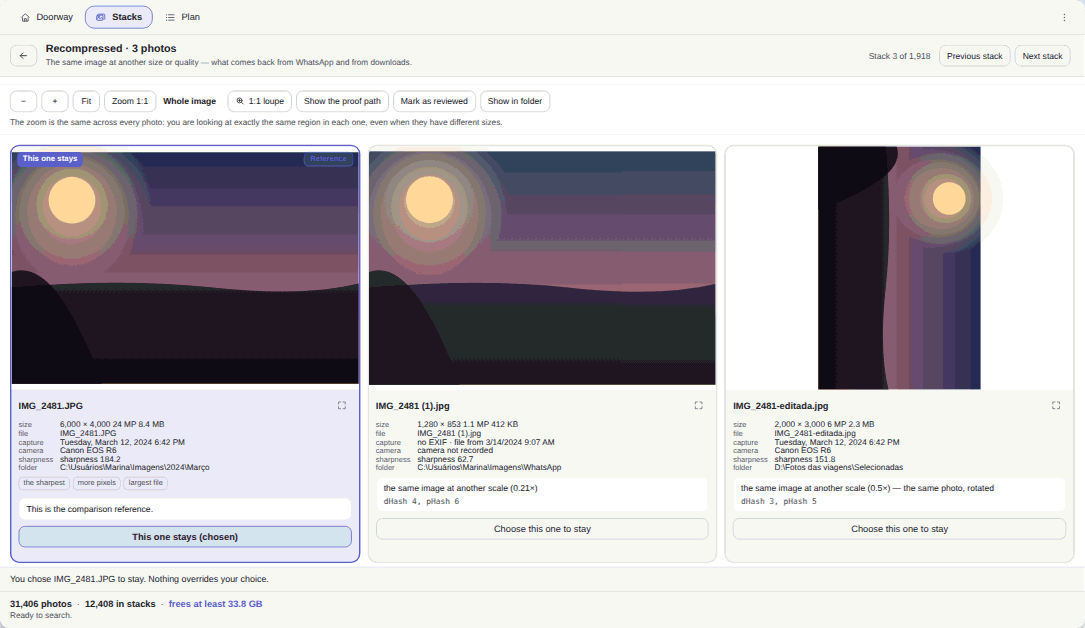
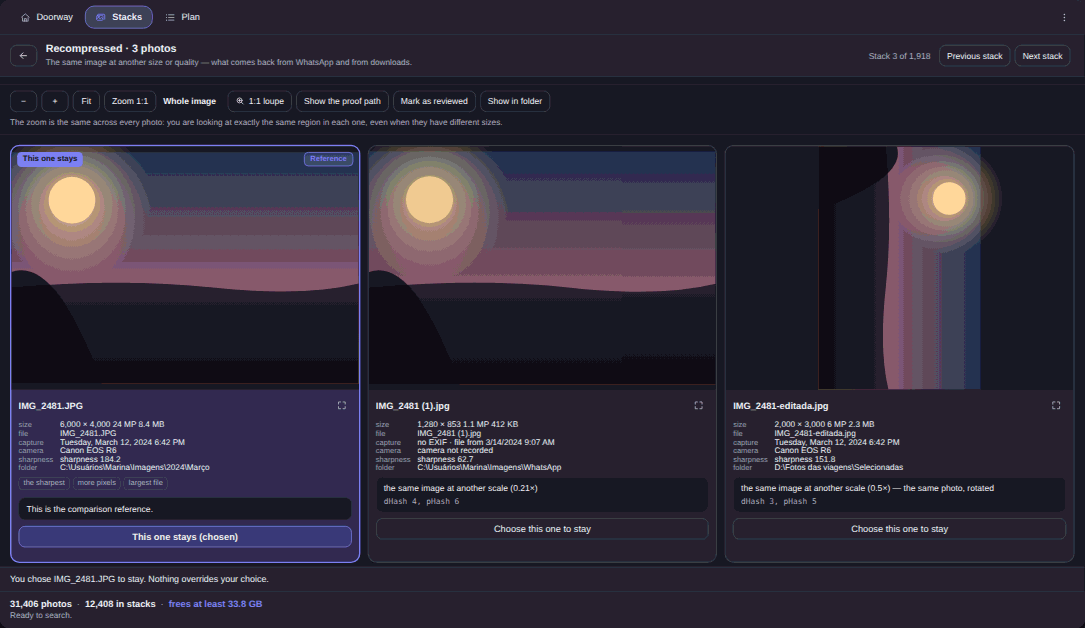
The card carries dimensions, file size, capture time, camera, measured sharpness and the full path. That is where you discover that the “camera JPG” is 1,280 pixels wide with no camera recorded at all, because it actually came back from a messaging app and is not the developed file at all. And it is where you notice the RAW sitting in a work folder while the JPG sits in Downloads, which usually settles the question by itself.
The zoom is shared across every photo in the stack, so a 6,000 × 4,000 original and a 1,280 × 853 copy show you the same region. Clicking Choose this one to stay pins your decision, and nothing in the engine outranks a pin you placed. The screen never hands you a percentage to interpret. It hands you a sentence: “the RAW and the JPG of the same capture”.
The edit sidecar travels along — or nothing moves#
This is where a homemade batch file does its damage. When you developed that RAW, the software wrote your adjustments into a separate file beside it, same base name, extension .xmp. Delete the RAW and leave the sidecar behind and you have lost the work and kept the litter.
The app treats that as a named class: a photo with an .xmp, .aae or .json next to it, or a RAW whose partner has one, is left out by default. It does not vanish and it does not become a vague warning. It shows up as a counted banner with a Release this class button that requires an explicit gesture from you. Release it and there is an edge case the product admits in writing: the sidecar of a byte-identical victim can be left orphaned.
When something does leave, companions travel with the file they belong to: the .XMP of a RAW, the .MOV of a Live Photo. They go together and they come back together.
To the Recycle Bin, with the way back open#
Nothing is born selected. The only kind of stack that carries a suggestion badge is the byte-for-byte copy, and even that one waits for your click. A RAW + JPG stack never arrives with a side pre-chosen, because that choice is yours and depends on what you will want from the photo two years from now.
Immediately before recycling, it re-reads the bytes of the victim and of the survivor; any divergence drops the whole stack with a named reason. After the cleanup it opens the file that stayed to confirm it really decodes, and if it does not, the entire batch comes back from the Recycle Bin. The only destructive verb in the app is the Windows Recycle Bin: permanent deletion does not exist there, not as a hidden option and not as a setting that shipped switched off.
Two honest limits to close on. It does not develop, convert or catalog: if what you want is to organize RAW and JPG by date and camera, that job belongs to File automation for photographers. Deciding which half stays is the job here. And if your real problem is the same photo in several versions rather than paired files, start with Find similar photos on Windows.
No photo and no file name leaves your machine. It is US$ 9.99 at launch price (list US$ 12.99), a one-time purchase, with a 15-day trial on your own PC, no card and no account. The Elegant Photo Cleaner changelog tracks what changed in each version.