 Elegant
Convert photos to PDF on your PC — no upload, one file
You shot fourteen receipts on the kitchen table, one at a time, holding the paper flat with one hand and the phone with the other. The photos came across to the PC over the cable, each carrying a name nobody chose: IMG_4471, IMG_4472, IMG_4473. And the expense portal wants one file. PDF is fine. One.
At that point the job stopped being photography. It became putting fourteen files in the right order, squaring up the ones shot at an angle, getting the result light enough for the portal to accept, and handing over a document the person on the other end can open in one go. This post does that whole run on your own machine, without your receipts passing through anyone’s server.
Fourteen photos of receipts, one portal that wants one file#
Nobody searches for how to convert photos to PDF out of curiosity about image formats. They have paperwork in hand and a deadline:
- the expense claim, where finance rejects anything that is not a single attachment;
- the school enrolment form that asks for “proof of address” in one upload slot;
- the accountant who asks for the week’s receipts every Monday and does not want fourteen attachments.
What stings is that everything is already done. The photos sit on your disk, readable, yours. All that is missing is the assembly, and that two-minute step is exactly the one the internet decided to charge for.
Why nobody opens your loose photos#
Sending the fourteen photos as they are looks like the short route, and it hands the work to whoever receives them. Three things go wrong, always the same three.
The order disappears. IMG_4471 does not mean “first receipt”. The person opening your email sees an alphabetical list that matches nothing, and the receipt from the 3rd can land after the one from the 28th.
The weight surprises you. A receipt shot on a recent phone runs between 800 KB and 1.3 MB. Fourteen of them clear 15 MB of attachment, which is enough to bounce off a corporate mailbox or a portal with a 10 MB ceiling.
Half of them arrived sideways. You turned the phone to fit the long receipt in frame, and the viewer on the other side shows the paper on its side. Nobody tilts their head; they close it and ask again.
One PDF settles all three at once. It fixes the order, takes compression that actually helps, and keeps every sheet in the orientation you left it in.
The free converter asks for your photos first#
Search for “jpg to pdf” and the first screen is always the same dashed box: drop your images here. That box means your receipts, with the client name and the amount of every purchase, get uploaded to somebody’s disk before anything happens at all. It is the same toll that shows up when you merge two PDFs, and it is not malice: for the site to work on your file, it has to receive your file. Then comes the daily quota of two free conversions.
There is a free route that uploads nothing, and it deserves credit: select the photos in File Explorer, right-click, Print, and pick Microsoft Print to PDF. It works, it ships with Windows, and for three photos already in the right order it is the correct answer. The limits arrive quickly. The order is the folder’s order, so changing the sequence means renaming files first; nothing straightens a crooked shot; and the PDF that comes out is a stack of pictures where Ctrl+F finds nothing. Three receipts for a reimbursement, use it and be happy. A month of paperwork asks for more.
From photos to PDF, in 5 steps#
Elegant Paper treats photos as what they are in your life: pages of a document that does not exist yet. Everything happens on your machine, with no account and no daily cap.
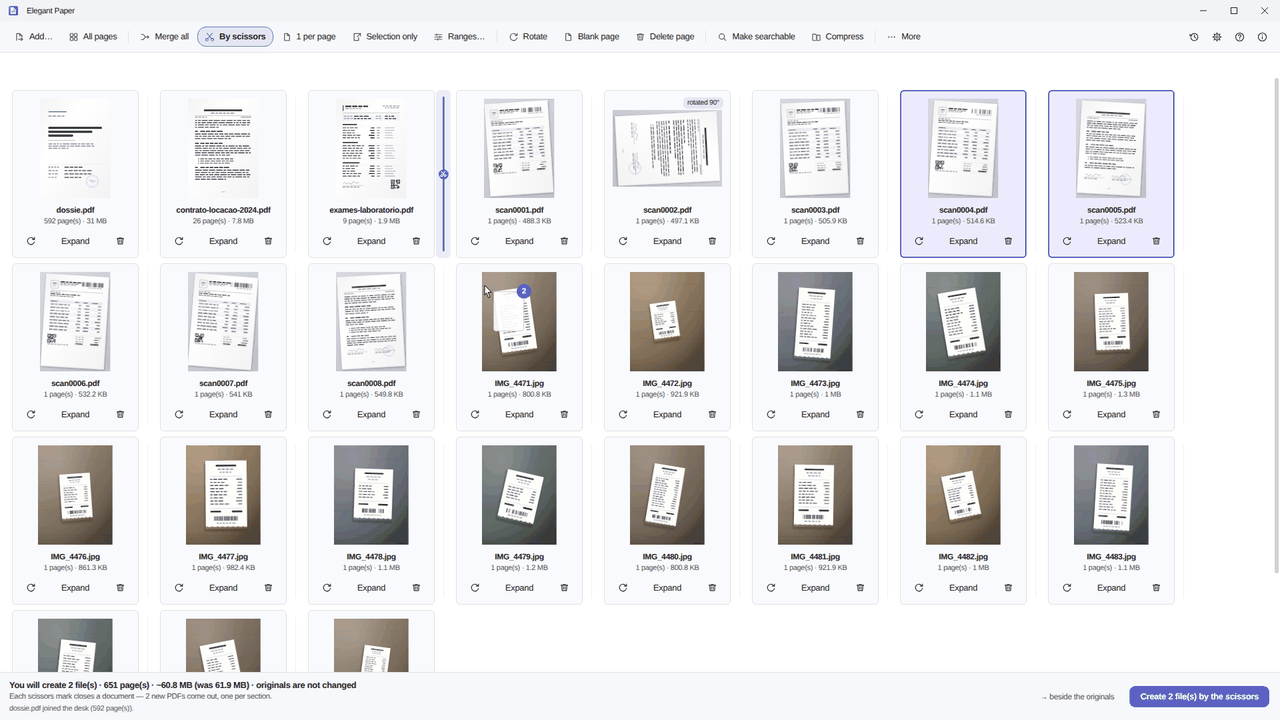
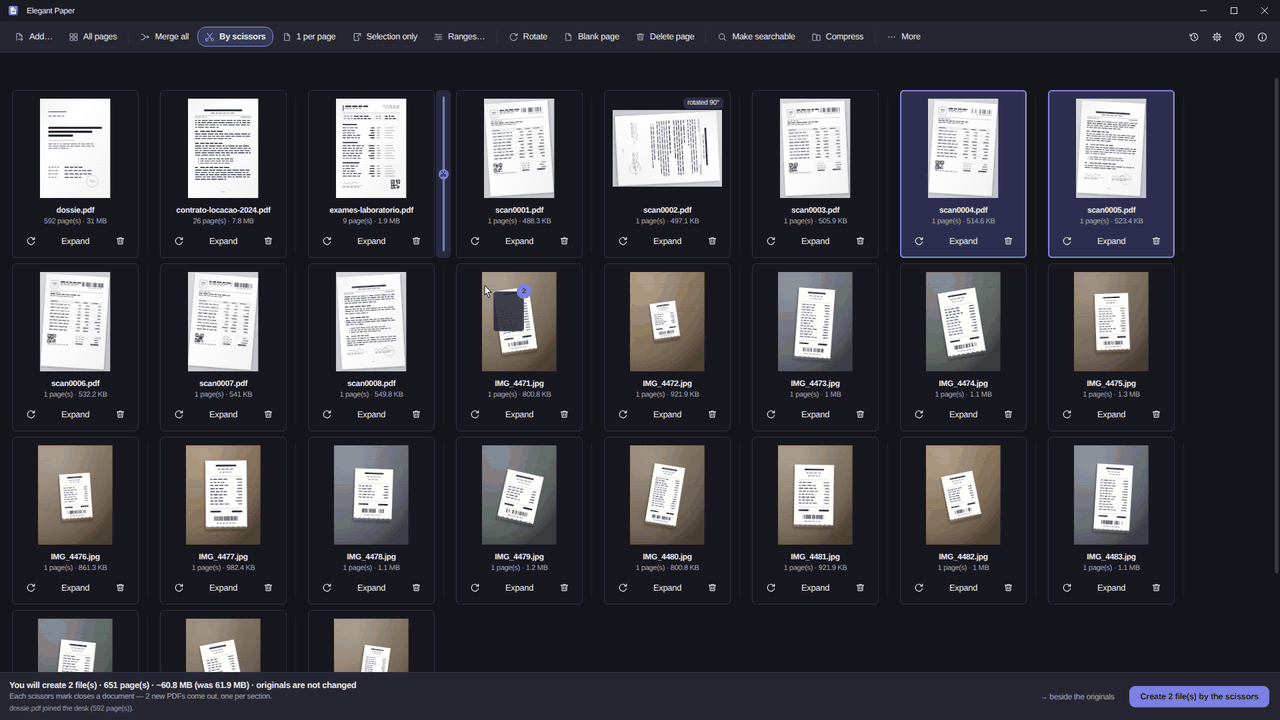
- Drop the photos on the desk. Drag them all in at once or use Add…. Each photo becomes a card showing the file name, the page count and the weight. Nothing has been written yet, and nothing in the source folder has moved.
- Set the order by dragging. You look at the thumbnail and move the card where it belongs, instead of renaming fourteen files to force an alphabetical order.
- Straighten what came in crooked. Rotate fixes the sideways shot. For a sheet photographed at an angle, Straighten a photographed page measures the tilt and squares the page up again.
- Mark what goes inside. Make searchable and the compression step become rows in a list, and a chip beside the button counts how many things are going in. While you build that list, the disk stays untouched.
- Pick the mode and save. With Merge all, the fourteen photos become a single PDF in the order you left them. The bottom bar states how many files, how many pages and how much it will weigh before you click Save 1 file.
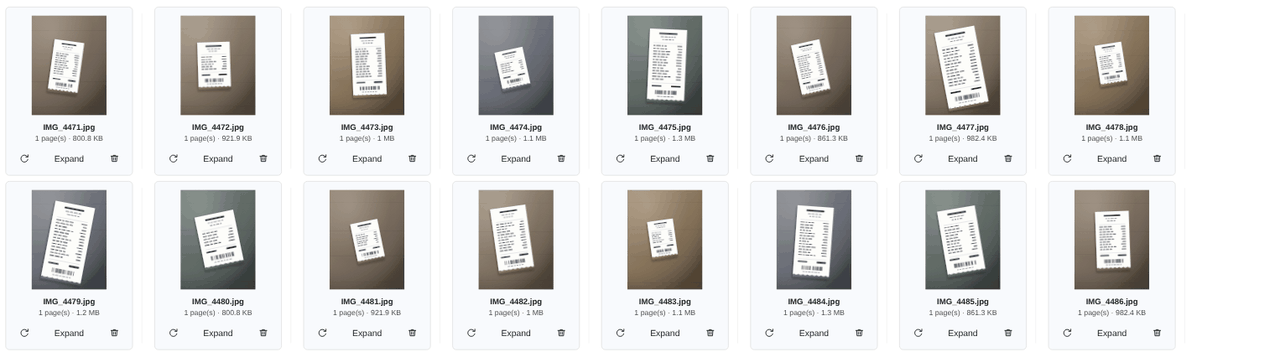
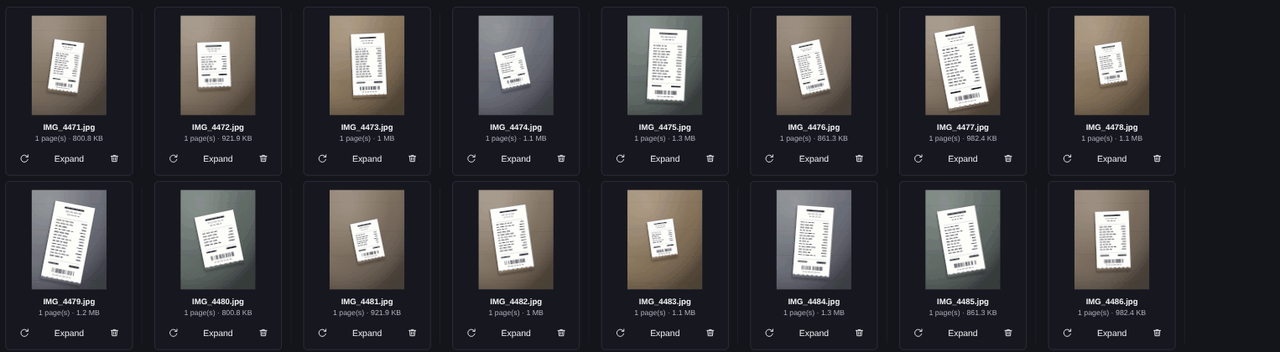
The desk draws no line between a photo and a document: PDFs and photos sit side by side, which is how the real run usually looks. The contract that arrived as a PDF, the scans from the office machine, and the photos you took of whatever was missing.
The crooked shot comes out straight — measured, not guessed#
The name of the feature is literal: Straighten a photographed page. It measures the tilt of the sheet in the image and hands back the page as a rectangle, without inventing a single pixel. That is geometry, not AI: nothing is redrawn by a model deciding what that smudged stamp probably said.
It helps to know what this does not do, because the difference shows up in the result. The shadow of your hand is still a shadow, a blurry shot is still blurry, and no amount of squaring up brings back a digit the camera never captured. If the document is one somebody will read closely, with fine print or a barcode, the flatbed still wins: Scan… pulls the pages straight off the device, feeder included.
What the desk accepts, HEIC included#
The input list is the one real life hands you: PDF, JPG, PNG, HEIC, TIFF, BMP, GIF and WEBP.
HEIC earns its own paragraph, because it is the iPhone default and the reason behind half the “this app won’t open my photos” evenings. It works when Windows has the HEIF Image Extensions installed. If they are missing, the app says exactly that, naming the component, instead of showing an empty card and leaving you to guess. It is a Windows dependency rather than a promise of ours, and you are better off knowing now than on deadline night.
Searchable and light in the same output#
Here is the difference that justifies installing a program instead of printing to PDF: the fourteen photos come out the other side as a document that behaves like a document.
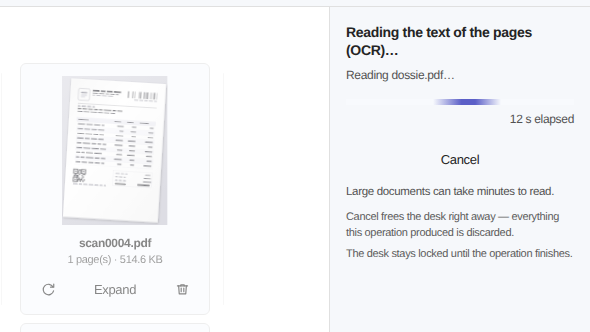
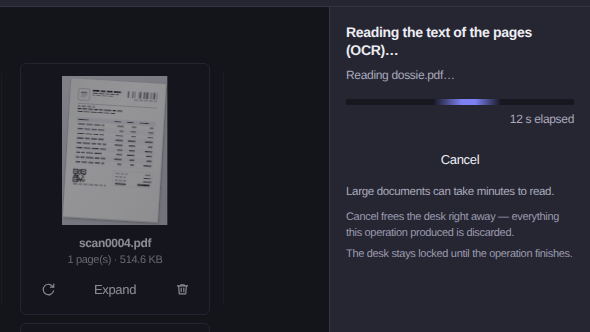
Searchable. Tick Make searchable and the PDF gets an invisible text layer under the images, using the recognition engine already built into Windows. The photo looks the same, and Ctrl+F starts finding a supplier’s name among the fourteen receipts. It runs in batch, shows progress and keeps a Cancel within reach. The post on making a scan searchable covers that subject on its own.
Light. Phone photos are heavy by nature, and compression works precisely on the images inside the file, so a PDF made of photos usually gives a lot back. There are three named steps: Light, Balanced and Maximum, each saying what it does to quality. At the end the app reports the measured result, as in “Compressed: 45.8 MB → 18 MB”, rather than promising a percentage before looking. The post on reducing PDF file size goes into which step to pick.
Both go into the same list and come out in the same save, instead of producing one PDF, then a second with OCR, then a third compressed one.
Your original photos don’t change#
This has to be spelled out, because it separates an experiment from a scare: the output is always a new file, next to the original or in the folder you choose. A repeated name gets a suffix, nothing is overwritten, and the fourteen photos stay exactly where they were.
In practice that means you can generate the PDF, open it, decide the third receipt came out too small, and generate again at another compression step. The 12-second toast with Undo sends the newborn file to the Recycle Bin, never your photos. What changed in each release is in the Elegant Paper changelog.
If you landed here because of a portal that takes one file only, the Elegant Paper page shows the desk, the input formats and the known limits, stated before you pay: it does not edit the text inside a PDF, does not fill forms and does not sign digitally. The trial runs 15 days on your PC with no card, and the licence is a one-time purchase: US$ 9.99 at the launch price, against US$ 19.99 list.