 Elegant
Back up before formatting your PC — and prove it worked
Everyone who has wiped a machine has heard the same sentence, usually from the person in the family who is good with computers: “back everything up first.” The sentence stops there. Nobody explains the hard part, which is knowing whether the backup came out whole, and that is the only part that matters the next morning.
Here is how it goes. You drag the folders onto the external drive, the progress bar reaches the end, Windows says nothing, and the absence of a complaint becomes your evidence. It is weak evidence. On any other day you can live with it, because the original is still there to patch whatever went missing. The night before a clean install, it isn’t.
The one backup where “I think it copied” won’t do#
An ordinary backup is a second copy: if it comes out incomplete, the worst case is that you don’t have a second copy. The pre-format backup is a different animal, because minutes later the first copy stops existing. Your entire digital life crosses a bridge that will collapse behind it, and the crossing happens exactly once.
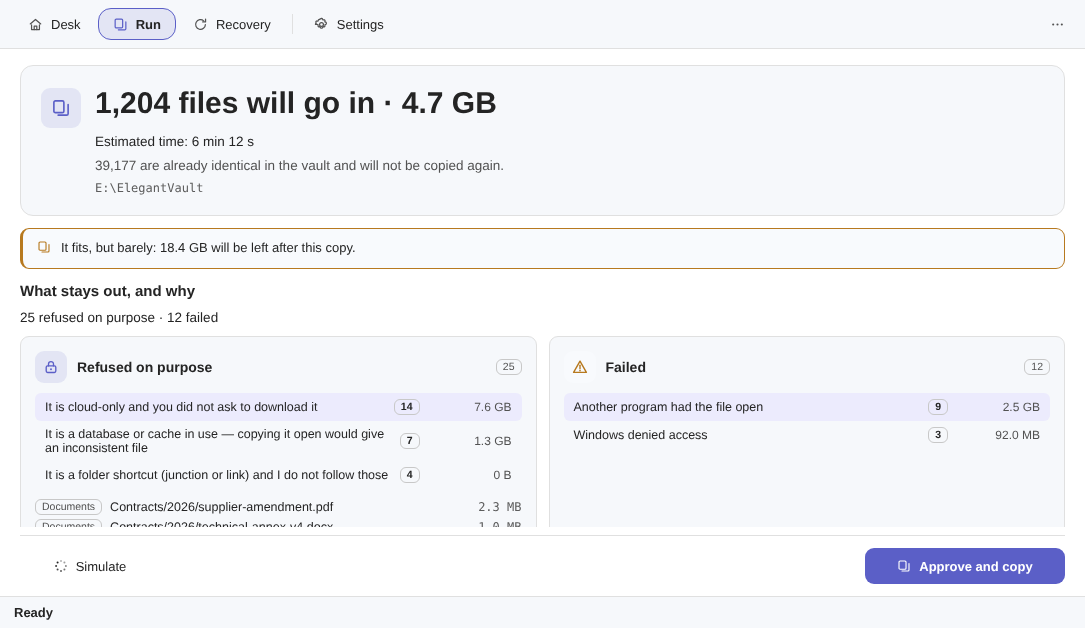
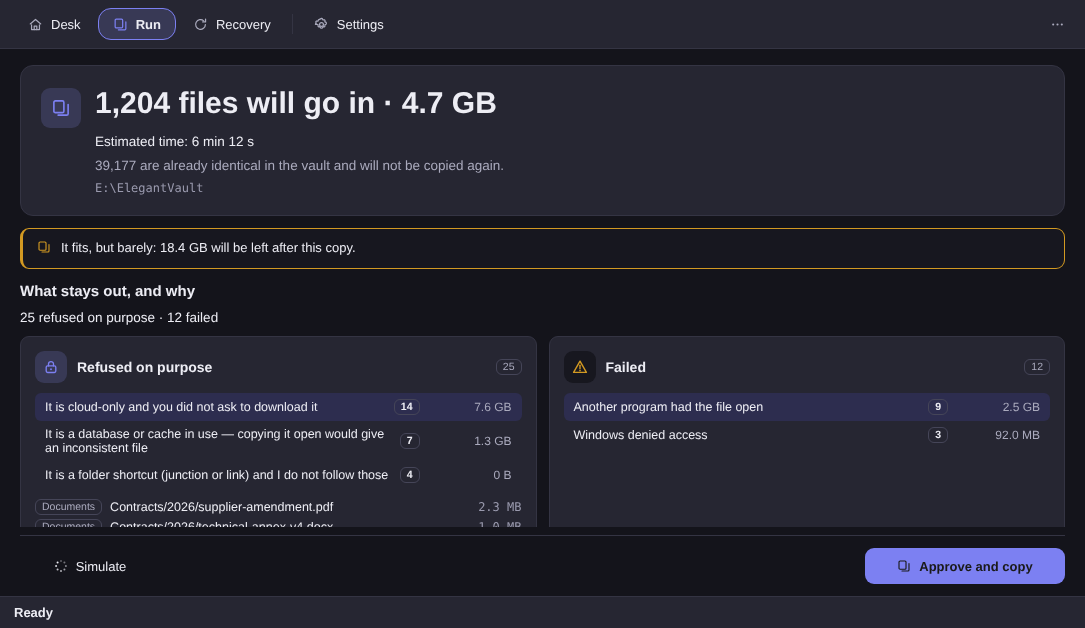
The way it goes wrong is almost never dramatic. Nobody forgets the Documents folder. What actually happens is quieter: the destination drive filled up at file 900 of 1,204 while you were making coffee; nine files were open in another program and got skipped without a word; fourteen photos lived only in OneDrive and arrived as nothing; the folder with the 2024 accounts sat outside your user folder and never got ticked.
In all four cases the copy finished looking complete, and nobody checked it, because there was nothing to check it against. “Copied” is a word a program writes about itself. So what follows is not another list of what to save, but the other half of the job: walking away from the desk holding a number.
A map of what you’re about to erase#
Formatting wipes the system partition, and nearly everything of yours lives inside it, under C:\Users\yourname. Documents, Pictures, Videos and Music almost nobody gets wrong. Downloads is the folder everyone treats as disposable, and it is where the invoice, the signed contract and the installer you can no longer find happen to be. The Desktop is a folder too: those icons on your screen are files lying in Desktop.
Then comes the part the ready-made checklists rarely mention, because it doesn’t live there: the Thunderbird or Outlook mail store, the Lightroom catalog, the Zotero library, game saves, the fonts you installed one by one. If a program matters to you, find where it keeps your work and copy that whole folder. External storage is cheap; rebuilding three years of photo keywording costs a month.
And if there is a second partition, the D: that theoretically survives, copy it too: the installer lists partitions by number and size, not by the letter you know, and “theoretically” has ruined plenty of Tuesdays.
The file that looks local and isn’t#
This is the trap that spoils more pre-format backups than any other, and it is quiet by design. When OneDrive or Google Drive saves space, the file still shows up with a name, an icon and a size; only the contents are on the server. You open Pictures, count 3,400 photos and conclude that you have them. A good share of them you don’t.
Drag files like that onto an external drive and either Windows downloads everything first, turning a six-minute job into a six-hour one, or the connection wobbles halfway and leaves you an error dialog with no list of what went missing.
Elegant Vault refuses those files on purpose and says so to your face, with the bytes counted before you approve anything: “It is cloud-only and you did not ask to download it”, 14 files, 7.6 GB. It reads the mark on the dehydrated file and never the contents, so that asking about it can’t trigger a 40 GB download behind your back. The decision comes back to you: tell OneDrive to keep those folders always on this device, wait for the download, simulate again.
Copy and prove it, in 6 steps#
- Plug the drive in and create the vault. Under New vault, give it a name and pick the destination folder on the disk. A vault is an ordinary folder tree with the same paths you have today.
- Tick what the map turned up. Add folder…, one at a time: the user folder, the folders outside it, the
D:drive if it fits. Tick too much rather than too little. - Simulate. The Simulate button writes nothing anywhere: it reads, counts and hands back the plan, with how many files, how many GB, how many are already identical in the vault, the estimated time and how much space is left after this copy.
- Read the two buckets. This is the step this article exists for. “Refused on purpose” and “Failed” are different pieces of news, and both lists come with counts, bytes and full paths.
- Approve and copy. It is always two gestures, and no button here copies before it has shown you the numbers.
- Keep the seal. At the end, one line of five numbers says what happened, and the lists save as CSV.
As each file travels to the drive, the program computes a fingerprint (SHA-256) for it, a number that changes if a single byte changes, and writes it into a plain text list on the drive itself. Checking, later, means rereading what sits in the vault and redoing the sum. If the numbers agree, the file arrived whole. If they disagree, you learn which one, while the original still exists.
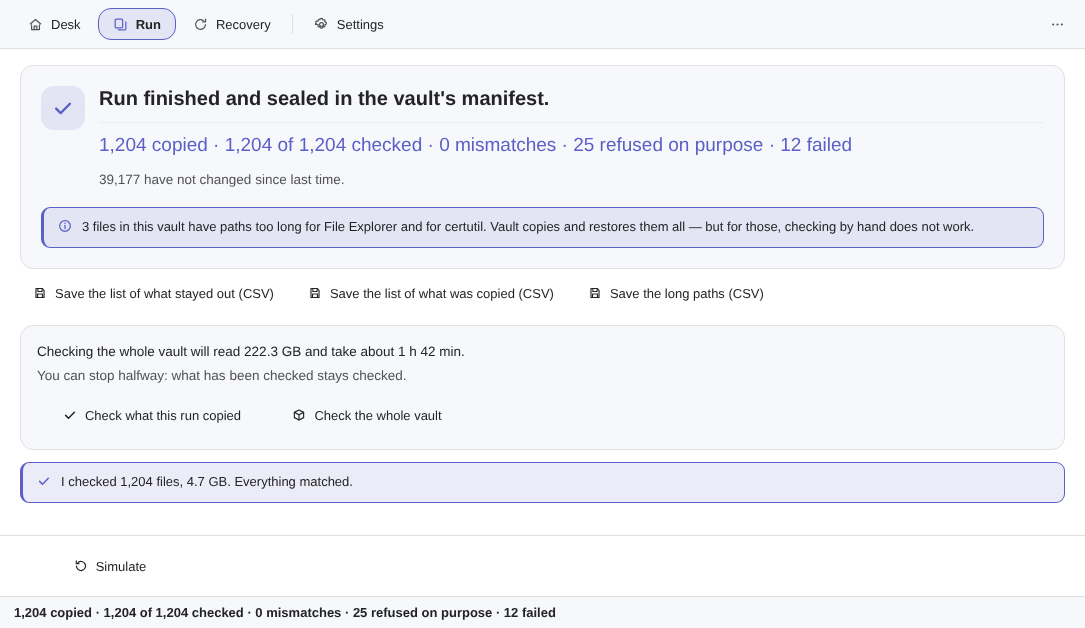
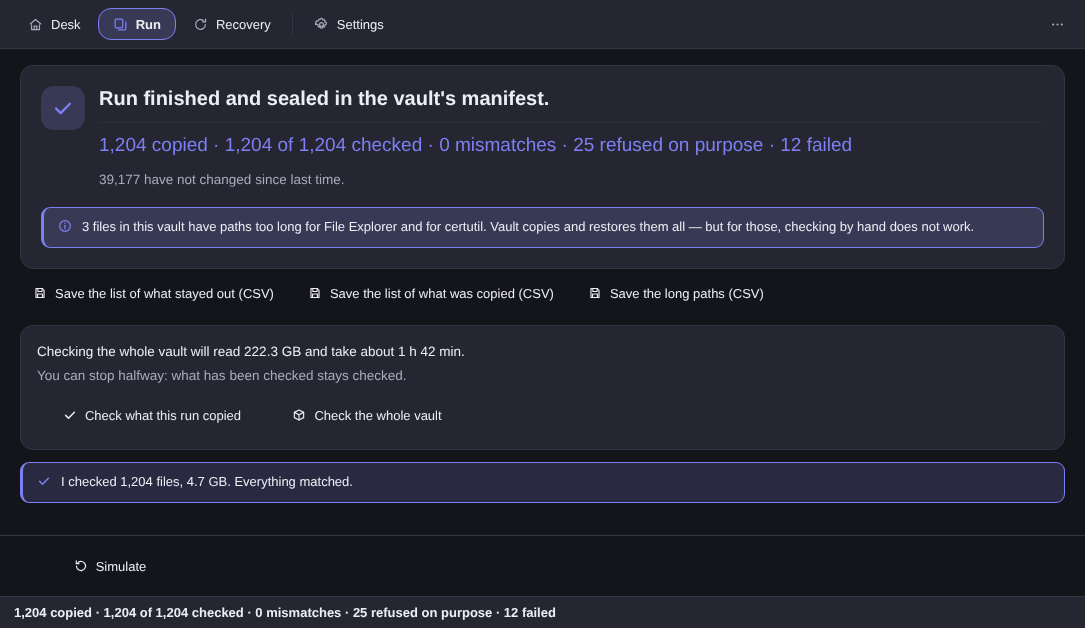
That same screen carries a warning almost no program would volunteer: three files in this vault have paths too long for File Explorer and for certutil. Vault copies and restores all three; you just can’t check those by hand afterwards. The full tour of the vault lives in the post on backing up to an external hard drive. What changes here is the clock.
Rehearse the way back before burning the bridge#
Copying is half the work. The other half is the question almost nobody asks in time: does this actually come back? The Rehearse the restore button answers in about 40 seconds, and it is not a simulation. It draws twenty files from the vault and brings them back for real, into a temporary folder, checking each fingerprint against the list. The draw has a method, printed next to every name: among the largest, longest without a check, among the longest paths, which is where trouble lives, and drawn evenly.
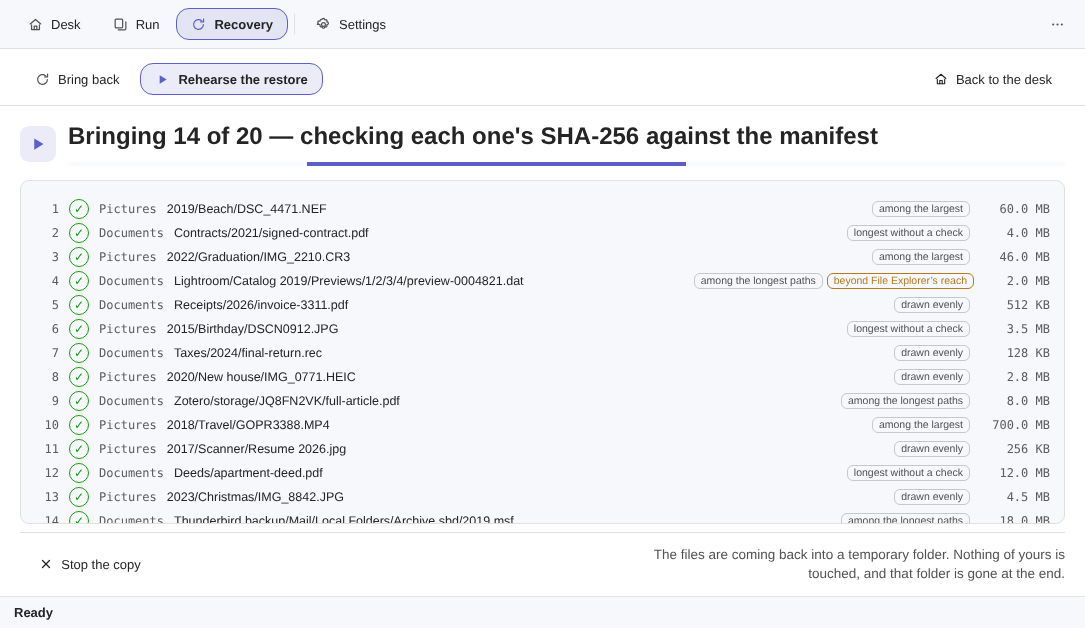
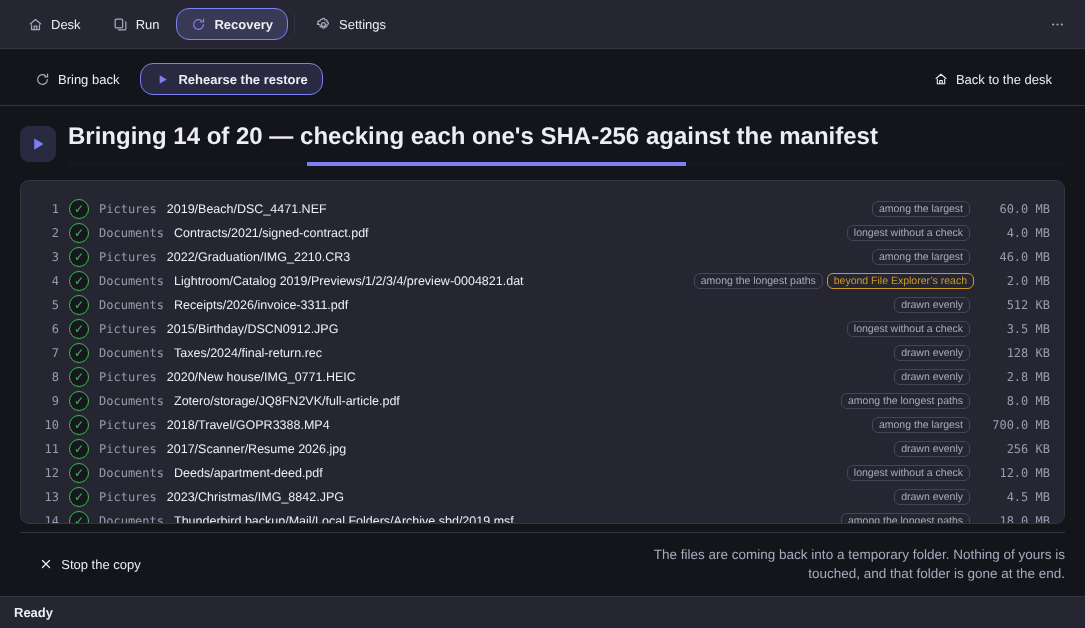
A sample of twenty is not a restore, and the app never pretends otherwise. For the night before a format there is the complete option: Check the whole vault rereads file after file and tells you the size of the bill before it starts, something like 222.3 GB and about 1 h 42 min on that drive. You can stop halfway, and whatever has been checked stays checked. Leaving that check running through dinner is the cheapest insurance in this article.
On the fresh Windows, the way back has no catch#
The disk formatted, Windows freshly installed, the user folder empty. This is the moment many backup programs choose to charge you, and this one doesn’t: the 15-day trial blocks exactly one verb, copying. Restoring, checking and rehearsing never expire, not even for someone who never bought a licence. A backup that holds your files hostage because you didn’t pay is indefensible.
You don’t have to install anything, either: the vault is an ordinary folder tree, dragging from File Explorer works on any PC, and at the root of the drive sits a trilingual LEIA-ME.txt explaining the way back and the check by hand with the certutil that ships with Windows.
One detail only shows up on that day. If you created the new account under a different user name, the paths have changed, and restoring on top would be the perfect moment for an accident. Overwriting doesn’t exist here: when a file with that name is already sitting there, the one from the vault arrives beside it, with a suffix, or in a new folder.
What this backup doesn’t cover, said upfront#
Vault copies files and folders. It does not image your system, does not keep your installed programs and, in version 1.0, does not keep older versions: the vault is a mirror of right now. The rest is manual work, and it is short.
- Programs. Write down what you actually use. Installers can nearly always be downloaded again; a licence key emailed to you in 2019 sometimes cannot. Find those emails today.
- The Windows licence. On machines that shipped with Windows, it is usually tied to the hardware and reactivates on its own. A retail key is your responsibility, and it fits in a text file inside the vault.
- Your browser. Bookmarks, passwords and extensions come back through your account or a manual export. Export them, see that the file isn’t empty, and keep it with the rest.
- A system image. Putting the whole machine back exactly as it was, programs included, is a different tool, a legitimate one, answering a different question.
One more warning that no vendor enjoys giving. A single copy, sitting in the same room as the computer, protects you against the format and not against fire, theft or a lightning strike. For one afternoon, that is acceptable. As a permanent arrangement, it isn’t.
Format with the seal in hand#
What separates “I think it copied” from “it copied” is three unglamorous things: the list of what stayed out and why, a check that rereads the bytes, and twenty files that came back in front of you before the bridge fell. None is difficult, and all three are boring enough that almost nobody does them.
If the format is this week, the Elegant Vault page walks through the simulation, the seal, the rehearsal and the known limits in full. The trial runs 15 days on your own PC, with no card and no account, and the licence is a one-time purchase: US$ 12.99 at launch, against a US$ 24.99 list price. What landed in each release is in the changelog. And if your format is really a move to a new machine, the details shift and they are in the post on moving files to a new PC.